
Runway
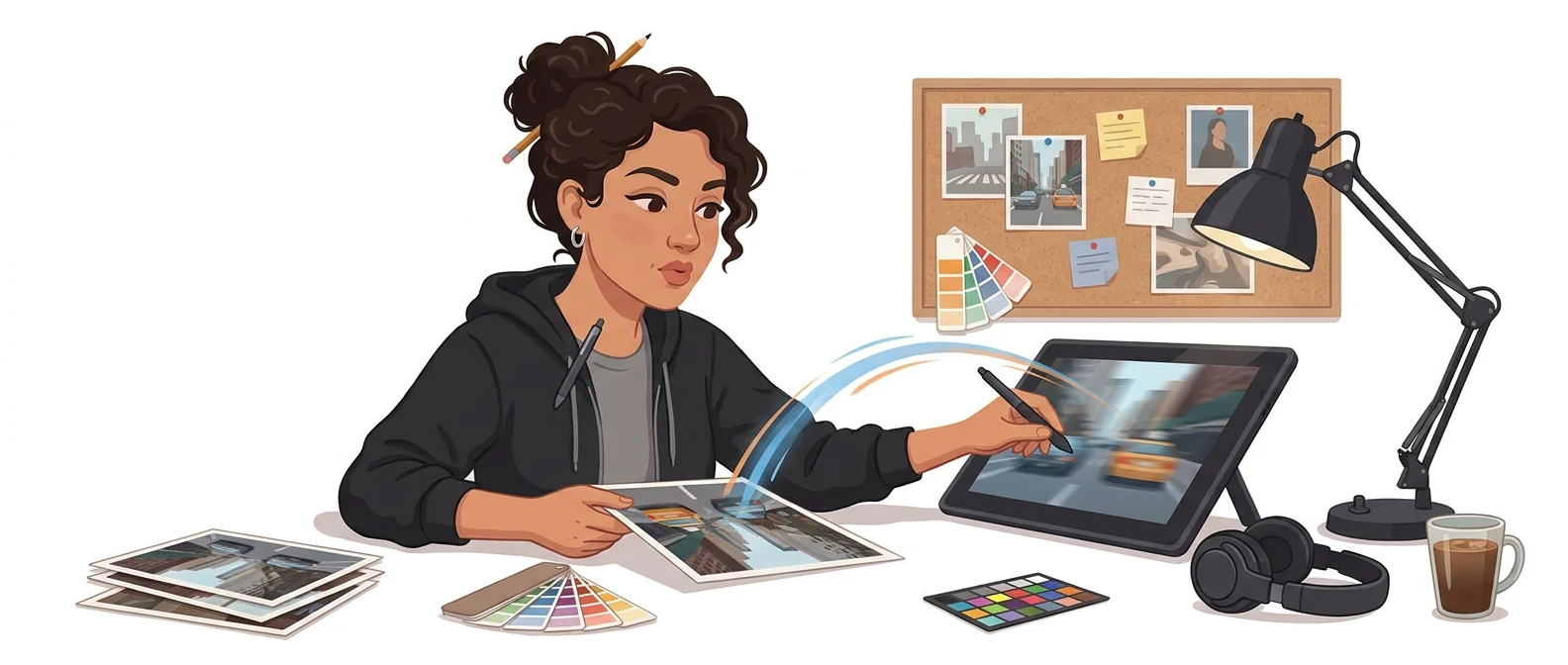
“An image-to-video AI specialist” — the craftsman who makes a single photo move
What is Runway?
Runway is a video production tool from the US company Runway AI. It is especially strong at turning photos or draft images you already have into moving video.
- 1Strongest for work that starts from images you already have
- 2Get 125 free credits and try it out first
- 3The mid-tier plan is inexpensive, so it is easy to roll out across your organization
What sets it apart
These are the differences we found by running the same material through several tools in our training sessions.
Start from images you already have
Feed it materials you already have (product photos, design drafts, photos from past events) and turn them into moving video. Results are far more predictable than describing a scene in words and hoping for luck, so you re-run less often in real work.
Offers solid control options
Image-to-video, setting start and end frames, and swapping out existing footage all sit on one screen. Per the official introduction, the current generation, Gen-4.5, is available on every paid plan, so a lower tier does not leave you stuck with older models.
Low barrier to entry
On the official pricing page, the free tier gives you 125 credits once, and with annual billing you can use it without a watermark from the $12/month Standard plan. It is a low-risk way to test with one or two accounts per department.
⚖️ The weaknesses are clear, too
Veo is the better fit for videos that need dialogue and ambient sound with the scene, and Seedance for shots that must run up to 30 seconds. Think of it as a tool built for animating images, and your expectations will match what it delivers.
💡 In plain EnglishLike a craftsman who walks in with your photo album and asks, “Shall I make this scene move?” It brings to life what you already have rather than imagining something new.
Your company already has a pile of photos. If you can bring those assets to life as video, you get moving visuals for social media, proposals, and training materials without a new shoot.
Same job, different approach
You have product photos but no video
The old way
- Place the photo on a slide and add a zoom in/out effect
- The result looks like dated promotional material
- Get a shoot quote, then push the project to next quarter
- In the end, this year goes out with still images again
With Runway
- Upload your existing product photo as is
- Describe in a sentence how you want the camera to move
- Run it a few times and pick the shot you like
- Add captions and music, then export as a vertical video for social media
Common uses
Turn product photos into moving shots
Turn photos you already have into short videos for social media, with no shoot required. The trick is to tell it to keep the product’s shape.
Proposal and plan drafts
Show a video concept as a short clip instead of describing it in words. Hand it over as a reference when you brief an outside production studio, and meetings get shorter.
Event photos into highlight reels
Turn a few photos from a past event into moving shots to make a short recap video. Use it for internal announcements or recruiting promotion.
Who it’s for
Best for
- ✓Anyone who finds shooting video hard but has plenty of photos
- ✓Anyone who dislikes video results that change every time
- ✓Anyone who wants to test it with their team at low cost
Better served by other tools
- –Anyone who needs dialogue and ambient sound together
- –Anyone who needs a single shot stretched to 30 seconds
- –Anyone who needs to turn a real space into 3D
Can we use it at work?
The questions that adoption leads and security teams ask first.
Note: Data handling and commercial-use terms vary by plan. Check them against the official terms of service.
10-minute quick start
- 1
Sign up at runway.com to receive the free tier’s 125 credits.
- 2
Start by uploading one product photo you already have and trying “image to video.”
- 3
Specify the camera movement in one sentence, and add that the product shape must not change.
- 4
If the results look usable, upgrade to the Standard plan and export without a watermark.
Copy-and-paste prompts
Replace only the [bracketed] parts, then paste it in.
Keep the shape, color, and proportions of the attached [product photo] exactly as they are. The camera pulls back very slowly until the whole product is revealed. Soft-focus background, soft lighting. Do not alter the product itself. 9:16 vertical, 5 seconds.
First frame: the attached [closed product photo]. Last frame: the attached [open product photo]. Connect the two scenes with a natural hand movement. Keep the lighting and angle the same at the start and end. 16:9, 5 seconds.
Based on the attached [event photo], have the camera glide smoothly from left to right so the atmosphere of the venue comes through. Keep people’s faces from changing much. Warm color tone. 16:9, 4 seconds.
Keep the elements of the attached [poster draft] in place and add only a subtle motion, like light slowly sweeping from top to bottom. Never change the letter shapes. 1:1, 4 seconds.
Start from the attached [store interior photo] and have the camera move slowly inward. Do not add people; show only the space. Keep the original lighting and color tone. 16:9, 5 seconds.
Using it with other tools
Linking two or three tools changes your work more than any single tool does.
Photo assets into social videos (1 hour)
Create a video concept draft
Before you start
- You get 125 free credits only once. Decide what to check before you run a test.
- When you upload an image, always add “do not change the shape.” Leave it out and the product’s form will quietly drift.
- The interface and help pages are in English. If you plan to train a group, take screenshots of the steps in advance.
- Do not upload photos showing employees or customers without their consent. Also avoid creating scenes that resemble real people.
Pricing: personal use and work use
Plans that individuals pay for are different from plans that organizations contract for by member.
For individual use
125 credits, one time · 5GB storage
625 credits per month · No watermark · 4K upscaling · 20GB storage
2,250 credits per month · 1 voice clone · Unlimited 4K upscaling · 100GB storage
9,500 credits per month · One month of credits rolls over · Studio-grade output · 500GB storage
Using it at work
No price listed on the official pricing page; contact Runway for a quote
Checked 21 Sep 2026 · Prices shown on Runway’s official pricing page. We list the standard price and the monthly equivalent when billed annually. Taxes and currency may vary by country. Prices can change without notice, so check the official page before you pay. Runway official pricing ↗
Agentic AI — the version that does the work itself
Beyond the generate button, the plan details include collaboration features for splitting up work and passing it along.
Agentic creative collaboration
The official pricing page’s plan comparison includes an “agentic creative collaboration” item, which confirms it is a feature that chains multi-step production tasks from a single request.
- No installation needed. You use it right in Runway’s web interface.
Runway MCP
A connection point that lets other AI tools call Runway’s generation features directly. It is listed as an item in the Pro plan on the official pricing page.
- Turn on the connection in your Runway account, then register it in the tool you plan to use.
Installation steps and conditions are based on the official documentation. Runway official pricing ↗
Where Runway falls short
We don’t just list the positives. Here is what fell short when we used it.
- The free credits run out before you get a feel for them
Your first credits run out before you learn what each run costs. Credits are spent even on results you do not like, so decide what you want to check before you press the button.
- A usable clip rarely comes out on the first try
You end up running the same instruction several times and picking the usable result. Some clips have wobbling object edges or hand shapes, so even getting one short scene can take a while.
- You’ll need to keep freeing up storage
Video files pile up fast, and each plan has a fixed storage limit. Having to download, move, and delete past work on a regular basis is a hassle.
Tools to compare
 KlingA mix of many features→
 LumaBest for object and space transformation→
 Veo 2, 3Generates dialogue and background sound→
 CapCutUnmatched ease of use→
FAQ
Last updated 22 Sep 2026 · The ratings on this page come from John Kim, CEO of Nanum Consulting, who has used these tools firsthand in training and real work.
Make Runway a team skill
Send us a message and we’ll reply within 24 hours. We’ll propose a curriculum tailored to your industry and job roles.
Courses covering this toolAI Video Production · ChatGPT & AI Tools Training · AI Tools Training (by Use Case)