
Veo 2, 3
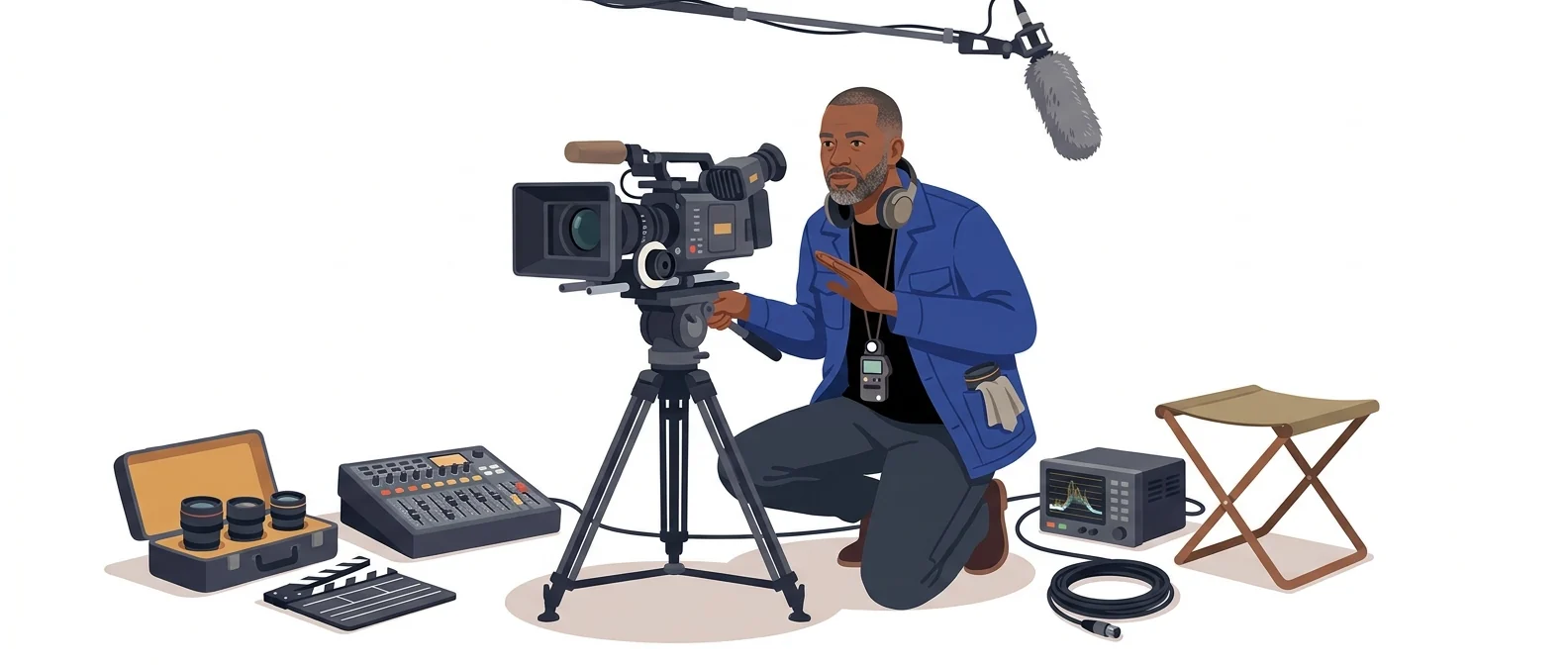
“Generates dialogue and background sound” — a cinematographer who captures the sound too
What are Veo 2 and 3?
Veo is a video generation model from Google DeepMind. Its biggest difference is that it creates not just the visuals but also characters’ dialogue and ambient and background sound in one pass.
- 1Create picture and sound in one step instead of adding them separately
- 2The latest version available now is Veo 3.1
- 3Start with your Google account and continue in Flow
What sets it apart
These are the differences we found by running the same material through several tools in our training sessions.
No need to add sound separately
It generates character dialogue, footsteps, ambient noise, and background audio together with the picture. Other tools make you produce video and sound separately and line them up; here they come out as one piece from the start. That greatly reduces the awkward mismatch between lip movement and speech.
A Google account opens the door
If your company uses Google accounts, there’s nothing new to sign up for. Try things out directly in Gemini, then move to Google’s video creation tools when you want to refine longer pieces. Dozens of people in a training room can start at the same time without hitting a wall, and that makes a real difference.
Chain scenes together and extend them
The latest Veo 3.1 adds vertical video, clip extension, first- and last-frame control, and reference images. You can now go beyond one-shot experiments to videos that tell a continuous story.
⚖️ The weaknesses are clear, too
To get a usable length, you will need a paid plan. Developer pricing is billed per second of video, so a single 20-second clip quickly costs more than a cup of coffee. The model name is also split into Veo 2, 3 and 3.1, so check which version you are actually using first.
💡 In plain EnglishThink of a cinematographer who carries the camera and the boom mic together. You spend less time collecting picture and sound separately and syncing them.
The polish of an internal video usually comes down to sound. If you can hear the sound at the draft stage without outsourcing audio work, decisions in planning meetings come much faster.
Same job, different approach
You need a product video draft for tomorrow’s meeting
The old way
- Download a similar video from a free stock site
- Find free music and trim it to length
- Without sound effects, the video feels flat
- You hear “it doesn’t really land” in a meeting
With Veo 2 and 3
- Describe in a sentence the sounds you want to hear along with the scene
- Generate 8-second clips with dialogue and background sound
- Set the last frame so the next clip picks up from it
- Decide right in the meeting with a draft that already has sound
Common uses
Announcement videos with dialogue
Create scenes of people speaking, such as internal policy announcements or customer service examples. Put the dialogue in quotation marks and the audio is generated with the video.
Openings where mood and sound matter
Create short clips to play before an event or lecture begins. Specify sounds such as rain, footsteps, or the echo of a room in plain sentences.
Concept clips to attach to a proposal
Turn a video concept you would otherwise describe in words into an 8-second clip. Hand it over as a reference video when talking to an outside production company, and your meetings get shorter.
Who it’s for
Best for
- ✓People making videos that include scenes of people speaking
- ✓Anyone who already works in a Google account
- ✓Small teams that can’t easily outsource sound work
Better served by other tools
- –Anyone hoping to make long videos on the free tier alone
- –You mainly spend your time cutting and splicing footage
- –Anyone who needs to turn a real space into 3D
Can we use it at work?
The questions that adoption leads and security teams ask first.
Note: data handling and commercial-use terms vary by account type. Check the official terms to confirm.
10-minute quick start
- 1
Sign in to Gemini with your Google account and open the video creation feature.
- 2
Describe the scene and the sounds you want to hear in one sentence to create an 8-second clip.
- 3
For scenes where people speak, write the dialogue exactly, in quotation marks.
- 4
To polish a longer piece, move your clips into Flow, Google’s video production tool, and stitch the cuts together.
Copy-and-paste prompts
Replace only the [bracketed] parts, then paste it in.
In a bright office, a neatly dressed person speaks to the camera. Korean dialogue: "Starting this month, [policy name] is changing. You can apply through the internal system." The voice is calm and clear, with quiet office ambience in the background. 16:9, 8 seconds.
Start at a rainy window and have the camera slowly move toward the desk inside. Sounds: rain hitting the glass, distant city noise, paper being turned. No dialogue. Warm indoor lighting. 16:9, 8 seconds.
The camera slowly circles [product name] on a desk. Sounds: the light rub of the product being picked up, soft background ambience. Morning sunlight, gentle shadows, only a hand appears. 16:9, 8 seconds.
The first frame is a closed meeting room door; the last frame is the inside of the meeting room with people seated. Connect the two with a motion of the door opening and the camera moving in. Sounds: the door opening, low conversation. 16:9, 8 seconds.
At a store checkout, a staff member listens to the customer to the end and responds calmly. Korean dialogue: "I’m sorry for the inconvenience. I’ll check on that right away." Make sure the face doesn’t look like any specific person. Include store background sound. 16:9, 8 seconds.
Using it with other tools
Linking two or three tools changes your work more than any single tool does.
Draft video to attach to a proposal (1 hour)
Inserts for internal training videos
Before you start
- First check which version you are using. Veo 2, 3, and 3.1 give different results, and “Veo 4” is not a name Google has announced.
- The developer API bills per second of video. Work out the unit cost before you make clips longer.
- Do not use it to imitate the face or voice of a real person or celebrity.
- If you don’t specify sound, the result feels flat. Describe what should be heard as carefully as what should be seen.
Pricing: personal use and work use
Plans that individuals pay for are different from plans that organizations contract for by member.
For individual use
Works within basic limits with just a Google account. Video generation is limited
200 Flow video-creation credits per month
1,000 Flow credits per month. Expanded video generation features
10,000–25,000 Flow credits per month. Uses the latest Veo
Using it at work
Audio included. No free tier
Price at 720p
4K is not supported
Checked 21 Sep 2026 · Personal plan prices are the KRW amounts shown on Google’s official subscription page; developer and enterprise prices are the per-second video rates on the official Gemini API pricing page. Plans with the same name may show different amounts depending on the subscription bundle (storage tier). Prices change without notice, so check the official pages before you pay. Google AI subscriptions (official) ↗ · Google One plans (Korea) ↗ · Gemini API pricing (official) ↗
Drawbacks of Veo 2 and 3
We don’t just list the positives. Here is what fell short when we used it.
- Credits run out fast
Getting one scene you like means regenerating many times, and failed results use credits too. You may find a month’s allowance gone after just a few videos.
- Subscriptions are easy to mix up
The same name can appear at different prices depending on the plan and storage bundle. Finding out which terms you are on means flipping between several help pages.
- Korean subtitles have to be added separately
Korean dialogue comes out well, but text inside the frame can look distorted. You end up adding subtitles and titles in an editing tool, which is always one extra step.
Tools to compare
 KlingMany features in one tool→
 RunwayImage-to-video specialist→
 GeminiGoogle’s all-purpose AI→
 SeedanceImpressive performance→
FAQ
Last updated 22 Sep 2026 · The ratings on this page come from John Kim, CEO of Nanum Consulting, who has used these tools firsthand in training and real work.
Putting Veo 2 and 3 to work in your organization
Send us a message and we’ll reply within 24 hours. We’ll propose a curriculum tailored to your industry and job roles.
Courses that teach this toolAI Tools Training (by Use Case)