
Luma
“The best at turning real spaces into 3D” — a surveyor who captures an entire site
What is Luma?
Luma is a video and 3D tool from the US company Luma AI. It turns objects or spaces you film with a phone into 3D scenes you can rotate and explore, and it also creates video with its Ray model.
- 1Shoot with an iPhone and it becomes a 3D scene you can rotate
- 2The 3D capture app is free; video generation is paid
- 3Ray, the video model, offers strong camera-movement control
What sets it apart
These are the differences we found by running the same material through several tools in our training sessions.
Shoot it, and it becomes a 3D scene
Walk once around a product or space with your phone, and it becomes a scene you can rotate to view from any angle. Per the official guide, an iPhone 11 or later is enough, no LiDAR required, and results can be exported to Unreal and Unity. It works as is for exhibition, store, and equipment records.
You direct the camera yourself
The latest model, Ray 3.2, lets you set multiple reference frames within a single video to decide where the camera travels. Instead of waiting for a lucky shot, you steer toward the angles you intend, which suits product videos where the surfaces to show are already decided.
All you need is a phone
The 3D Capture app is a free download from the App Store. No scanner or gimbal is needed: the person on site can shoot and upload on the spot. Being able to start without buying new equipment matters most when you roll it out across an organization.
⚖️ The weaknesses are clear, too
There is no free plan for video generation. The official pricing page starts with the $30/month Plus plan. The official home page has also shifted toward video and brand content, so you have to look for 3D capture as a separate mobile app. That makes it easy for beginners to get lost.
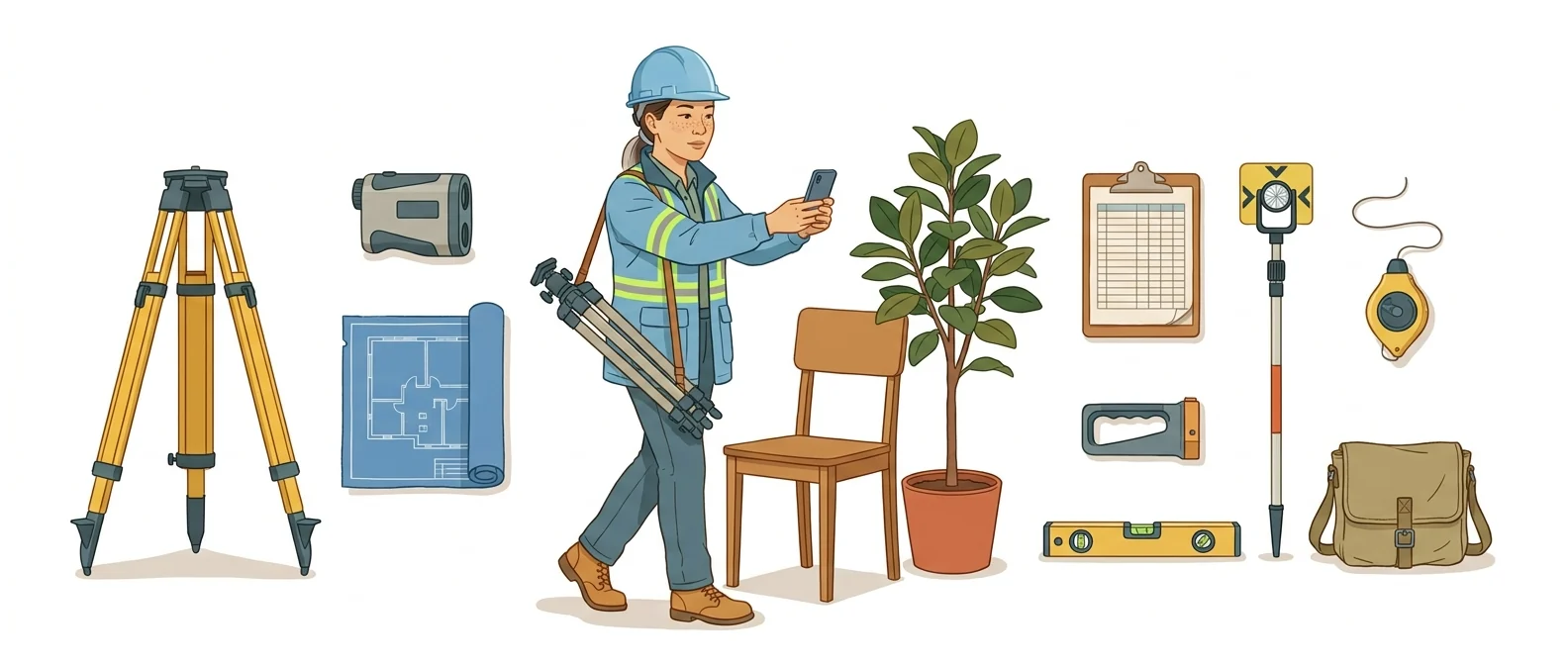
💡 In plain EnglishIt works like a surveyor who visits the site and takes measurements, bringing back the whole space you used to describe in words.
A few photos can’t convey a product or a space. With something you can rotate and explore, you spend less time explaining in remote meetings, and in training you can show the site without taking people there.
Same job, different approach
You have to explain a new store interior to headquarters
The old way
- Take about thirty photos on site
- You only find out which angle is missing during the meeting
- You explain in words, “From the left, it looks like this”
- In the end, two people have to go back to the site
Using Luma with other tools
- Walk around the store with your phone and film it
- Upload it as a 3D scene you can rotate
- In meetings, everyone rotates to the angle they want to see
- Render only the shots you need as video and attach them to the report
Common uses
Let viewers turn the product around
Shoot a new product or exhibit with your phone and upload it in 3D. Your customer can rotate it and see sides that catalog photos never showed.
Site and equipment records
Keep the state of a store, workplace, or piece of equipment as a full 3D space. Later, check how it looked back then as a scene, not a photo album.
A video that shows set angles
Specify a camera move that sweeps across particular sides of the product to make a short intro video. Shooting a reference frame first keeps the result steadier.
Who it’s for
Best for
- ✓Sales and planning staff who need to show products or spaces from every angle
- ✓Operations and safety managers who need to document site conditions
- ✓Anyone who wants precise control over camera movement
Better served by other tools
- –Anyone who only wants to make videos for free
- –Anyone who needs dialogue videos with people speaking on screen
- –Anyone who wants to generate scenes from text alone, without filming
Can we use it at work?
The questions that adoption leads and security teams ask first.
Please verify: whether Luma uses uploaded material for training, and how long it keeps it, must be confirmed in the official terms.
10-minute quick start
- 1
Download the Luma 3D Capture app to your phone and walk once around a small object while filming it.
- 2
Open the processed result on the web, rotate through the angles, and check which sides were captured poorly.
- 3
To try video, upload a single photo to Dream Machine on the web and create a short clip.
- 4
Once you decide it’s worthwhile, choose a plan. Video generation has no free plan.
Copy-and-paste prompts
Replace only the [bracketed] parts, then paste it in.
Keeping the attached [product photo] exactly as is, the camera starts at the left of the product, passes the front, and sweeps around to the back right in one move. The product stays still; only the camera moves. Soft studio lighting, white background. 16:9, 8 seconds.
A point-of-view shot starting at [store entrance] and slowly walking in to the [display shelf] at the back. Camera at eye level, moving forward at a steady speed with no shake. Afternoon with natural light coming in, no people. 16:9, 10 seconds.
First frame: a closed [product] sitting on a desk. Last frame: the same [product] in the same spot, open with its interior visible. Connect the two with natural motion. Keep lighting and angle identical at start and end. 16:9, 6 seconds.
A scene in which the camera slowly circles [equipment name] inside a factory. No workers, only the equipment. Bright, even indoor lighting, realistic textures, no exaggerated effects. 16:9, 8 seconds.
[Event venue] A scene that starts with a wide view and glides gently toward the stage. Empty chairs are neatly arranged and the lights are on. No text or captions. Warm colors, calm pace. 16:9, 10 seconds.
Using it with other tools
Linking two or three tools changes your work more than any single tool does.
Turn a store site visit into a report (half a day)
Product intro video (2 hours)
Before you start
- For 3D capture, shoot one slow full loop and vary your height as you go. If you circle too fast, any missed sides show up as holes.
- Video generation has no free plan. If you run it without checking credit consumption, expect a surprise in the first month.
- Factory and lab interiors are recorded in their entirety. Get filming approval before you shoot.
- The interface and help pages are in English. If several people will start at the same time in a training session, prepare a step-by-step guide in advance.
Pricing: personal use and work use
Plans that individuals pay for are different from plans that organizations contract for by member.
For individual use
10,000 credits/month · Commercial use · Guest collaborative editing
40,000 credits/month · 4x agent usage
150,000 credits/month · 15x agent usage
Using it at work
Team member management · Project organization · Usage analytics · Shared credits · SSO
Team features plus enterprise contracts, training, and custom fine-tuning
Checked 21 Sep 2026 · Prices shown on Luma’s official pricing page. Both the monthly price and the monthly equivalent when billed annually are listed. Tax and currency may vary by country of access. Prices change without notice, so check the official page before paying. Luma official pricing ↗ · Luma 3D Capture app (App Store) ↗
Agentic AI — the version that does the work itself
Beyond producing a single video, it offers an agent feature that carries out production work split into multiple steps.
Luma Agents
The official pricing page lists a separate “agent usage” line for each plan, which confirms this feature is built for handing off multi-step production work. Higher plans include more usage.
- Use it right in the Luma web interface, with no separate installation.
Installation methods and requirements follow the official docs. Luma official pricing ↗
Where Luma falls short
We don’t just list the positives. Here is what fell short when we used it.
- Expensive for occasional use
The lowest monthly plan is $30 a month, which is a lot if you only make a few videos each month. The bigger the gap between busy and quiet months, the more it feels like wasted money.
- Camera instructions don’t always come through as written
Even when you describe how the camera should move, Luma sometimes interprets it differently, so getting one shot you like means running the same scene several times. Credits keep draining the whole time.
- You end up switching between two screens
Capturing spaces and making videos live in separate apps and screens, so on days when you use both, you end up switching between accounts and windows. You can’t finish everything in one place.
Tools to compare
 RunwayImage-to-video specialist→
 KlingA broad mix of features→
 Veo 2, 3Generates dialogue and background audio→
 SeedanceStrong performance→
FAQ
Last updated 22 Sep 2026 · The ratings on this page come from John Kim, CEO of Nanum Consulting, who has used these tools firsthand in training and real work.
Luma, built into your organization’s skills
Send us a message and we’ll reply within 24 hours. We’ll propose a curriculum tailored to your industry and job roles.
Courses covering this fieldAI Video Production