
Kling
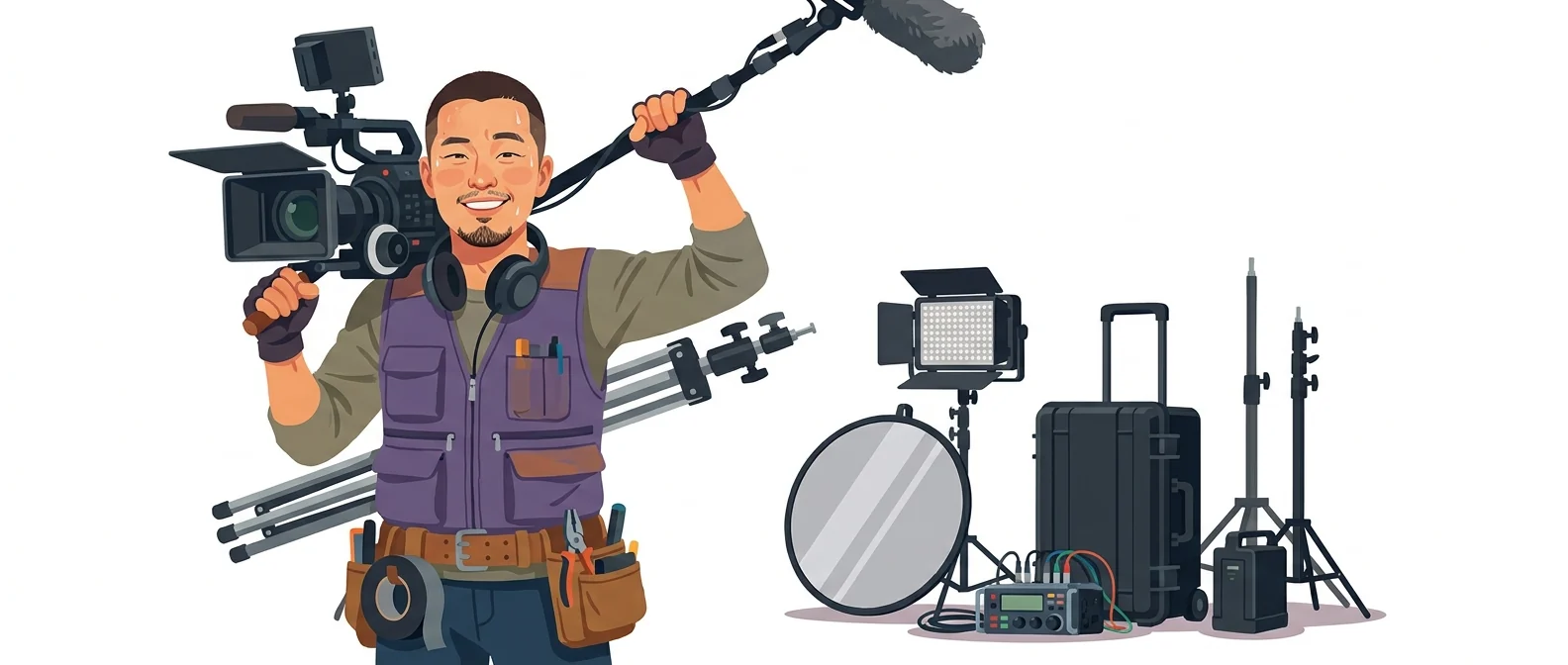
“Many features in one place” — a one-person film crew that does it all
What is Kling?
Kling is a video generation AI from China’s Kuaishou. It creates video from text and images, and also handles lip-synced dialogue, sound, and multi-shot sequences in one interface.
- 1Generation, sound, dialogue, and multi-shot are all in one place
- 2Officially supports lip-sync for Korean dialogue
- 3Credit-based pricing means resolution and length drive the cost
What sets it apart
These are the differences we found by running the same material through several tools in our training sessions.
All the features you need in one place
Text-to-video, photo-to-video, locking a character with reference images, adding sound and dialogue, and building multi-shot sequences all happen on one screen. The biggest real saving is that the small chores disappear: no hopping between three or four tools to export and re-upload files.
Lip-syncs Korean dialogue
According to Kuaishou’s official announcement, Kling 3.0 supports lip-synced dialogue generation in five languages: English, Chinese, Japanese, Korean, and Spanish. Internal announcement videos featuring a speaker look noticeably less awkward.
Weave multiple shots into a story
A storyboard feature lets you set length, angle, point of view, and camera movement for each shot and stitch them together. Instead of stopping at a single-shot mood clip, you can go all the way to a short story, which is where Kling parts ways with other tools.
⚖️ The weaknesses are clear, too
With so many features, it’s hard to know where to start. And because it runs on credits, costs add up fast if you generate a lot. Per the official guide, 4K costs 30 credits per second, so get into the habit of running drafts at low resolution and rendering only the final version at higher quality.
💡 In plain EnglishIt feels like a one-person production team handling filming, lighting, recording, and editing. You never have to go out and rent new equipment.
Internal videos are usually short but frequent. Switching tools each time costs more in learning than it saves. A tool that handles both video and sound is easier to roll out across an organization.
Same job, different approach
You need a one-minute new-hire orientation video by Friday
The old way
- Get a voice actor quote and drop the idea
- Collect free video clips and stitch them together like slides
- You end up with a dull video where only subtitles scroll by
- In the end, the manager has to step in front of the camera
With Kling
- Split it into four scenes and specify the angle and movement for each shot
- Add Korean dialogue with lip-sync to scenes where people speak
- Run several low-resolution passes and pick a draft
- Re-render only your chosen clip in high resolution to finish
Common uses
Internal announcement videos
Turn content that people skip when sent as text, such as benefits notices or explanations of new policies, into a one-minute video. Add Korean dialogue to the speaking scenes.
Product or service teaser
Turn a single photo into a moving shot. It is the fastest way to produce vertical social videos without a shoot.
Reenacted training scenarios
Recreate situations that are hard to film for real, such as a failed customer interaction or a safety violation, and drop them into the middle of a lecture.
Who it’s for
Best for
- ✓You want to finish in one place instead of learning several video tools
- ✓Anyone who needs Korean-language videos with on-screen speakers
- ✓Anyone who needs to turn out short videos regularly
Better served by other tools
- –You mainly spend your time cutting and splicing footage
- –You want to generate freely without managing credits
- –Anyone who needs to turn a real space into 3D
Can we use it at work?
The questions that adoption leads and security teams ask first.
Note: Check the official terms of service to confirm whether your inputs are used for model training and under what conditions data is transferred abroad. We recommend a legal review before rolling it out company-wide.
10-minute quick start
- 1
Sign up at kling.ai and explore the interface on the free tier first.
- 2
Start by uploading a single photo and using “Image to Video.” The results are far more predictable than with text alone.
- 3
When a scene you like comes out, split it into shots, set the angle and movement, and add dialogue.
- 4
Save credits by generating drafts several times at low resolution and rendering only the final version once at high resolution.
Copy-and-paste prompts
Replace only the [bracketed] parts, then paste it in.
Keeping the shape and color of the attached [product photo] exactly as they are, the camera pulls back very slowly until the whole product is revealed. The surroundings are dark, with soft lighting only on the product. Keep the motion subtle. 9:16 vertical, 5 seconds.
A person in a business suit speaks calmly to the camera in a bright office. Korean dialogue: "Hello, this is [department name]. Here is a quick overview of what changes starting this month." Sync the lip movements to the dialogue. Natural light, blurred background. 16:9, 8 seconds.
Three shots. Shot 1 (4 sec): an office in the morning, camera slowly pushing in. Shot 2 (5 sec): a top-down view of documents and a laptop on a desk. Shot 3 (6 sec): people gathered and talking in a meeting room, camera slowly moving from the side. Keep lighting and color identical across all three shots.
A store counter scene: a staff member listens to a customer all the way through, nodding and taking notes. Calm, courteous expression. The face should not resemble any specific person. Natural indoor lighting, understated direction. 16:9, 8 seconds.
A background video to play before [event name] begins. Lights come on one by one on a dark stage as particles of light slowly rise. No text or captions. Deep navy and gold. Make the start and end similar so it loops naturally. 16:9, 10 seconds.
Using it with other tools
Linking two or three tools changes your work more than any single tool does.
One internal guidance video (2 hours)
Turn a product photo into a vertical teaser
Before you start
- Don’t render in 4K from the start. Per the official guide it costs 30 credits per second, so a few drafts can use up a month’s credits.
- Subscription credits and API credits do not transfer to each other. Decide which one you will use first.
- Do not make anyone resemble a real person or celebrity. Likeness-rights problems follow right away.
- Describing it in text alone gives different results every time. Adding a reference image makes the output far more predictable.
Pricing
For individual use
No monthly credits. For exploring features only
660 credits/month
3,000 credits/month
8,000 credits per month
26,000 credits/month
Checked 21 Sep 2026 · Prices and monthly credits are as shown in the credit cost guide on the official Kling AI blog. Amounts in parentheses are the discounted prices listed in the same guide; your actual checkout screen may differ by country and current promotions. Prices change without notice, so check the official page before you pay. Kling AI official blog · Credit cost guide ↗ · Kling AI official membership pricing page ↗
Where Kling falls short
We don’t just list the positives. Here is what fell short when we used it.
- You can’t make anything for free
The free Basic plan includes no monthly credits, so you can only look around. You’d want to judge by the results, but you have to pay on day one before you can.
- Tone can drift when you join scenes
When you join several scenes into one video, a person’s look and the color tone shift subtly from scene to scene. You usually need to match colors in editing or regenerate some shots.
- Subtitles end up in another tool
Putting Korean text inside the frame is better left to an editing tool. You make the video here and add subtitles elsewhere, so your workflow is split across two tools and loses momentum once.
Tools to compare
 Veo 2, 3Generates dialogue and background audio→
 RunwayAI tool built for image-to-video→
 SeedanceRemarkable performance→
 CapCutUnmatched convenience→
FAQ
Last updated 22 Sep 2026 · The ratings on this page come from John Kim, CEO of Nanum Consulting, who has used these tools firsthand in training and real work.
Putting Kling to work in your organization
Send us a message and we’ll reply within 24 hours. We’ll propose a curriculum tailored to your industry and job roles.
Course covering this toolVideo Production with AI