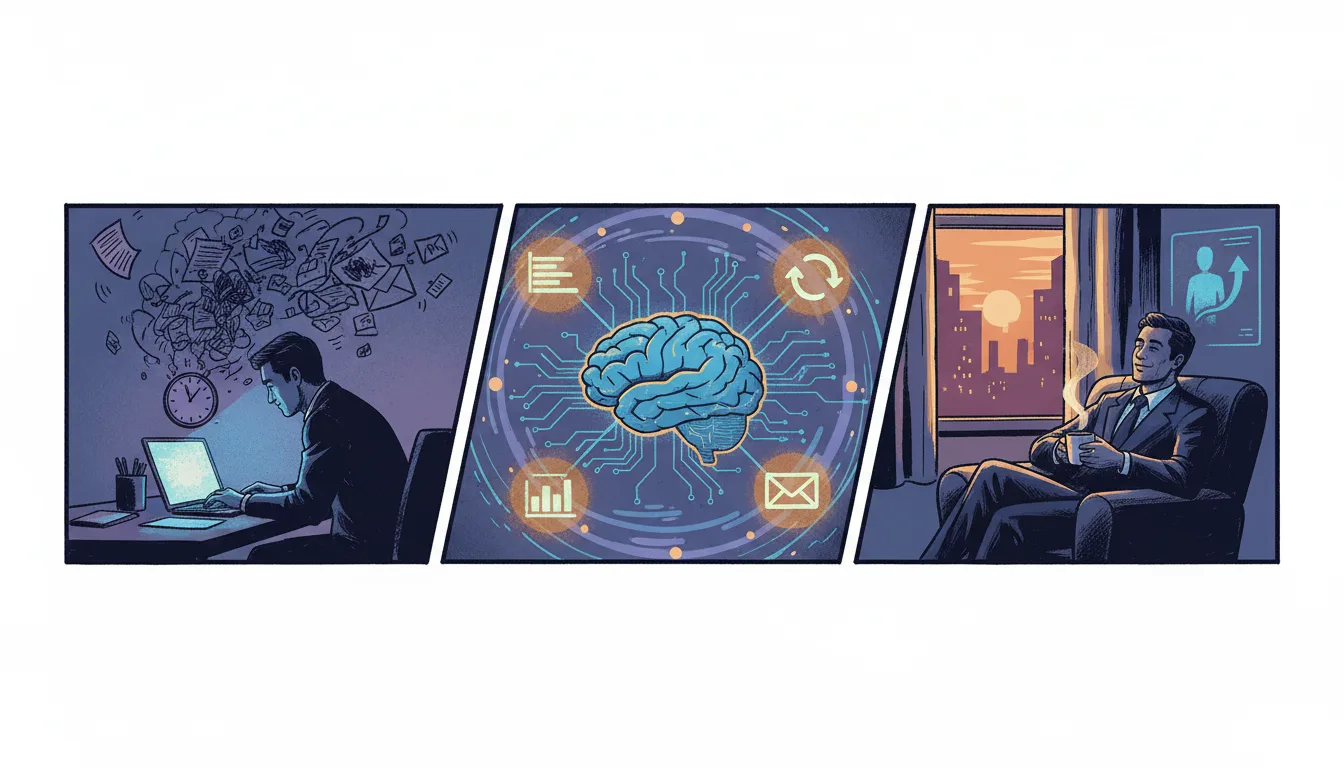
A Hands-On Guide to Getting 2 Hours a Day Back from Repetitive Document Work
Break down an office worker's day and you will find 40 minutes on weekly reports, 30 minutes on meeting minutes, and 50+ minutes on customer emails. Hand just these three tasks to AI and you can save about 2 hours a day. This guide is written for ChatGPT (free or paid), but the same prompts work in other AI tools such as Claude and Gemini.
Before You Start: Set Up Your Own AI Workspace
Step 1: Give ChatGPT Your Work Context in Advance
So the AI doesn't ask the same questions every time, set up **Custom Instructions** first.
How to do it:
Open ChatGPT → click your name at the bottom left
Click "Customize ChatGPT" or "Custom instructions"
In the top box ("What would you like ChatGPT to know about you?"), enter the following:
I am an assistant manager on the sales team at a B2B SaaS company. My main customers are IT managers and purchasing decision-makers at mid-sized manufacturing and retail companies. I submit weekly reports to my team lead in this order: [This week's results → Key activities → Issues → Next week's plan]. I prefer a polite, professional tone that is concise yet includes specific numbers.
In the bottom box ("How would you like ChatGPT to respond?"), enter:
Please respond in English. Make good use of bullet points and tables in business documents, and get straight to the point without unnecessary greetings. Include specific figures and dates.
Click "Save"
💡 Set this up just once, and in every conversation from then on the AI automatically reflects your role, writing style, and report format. You no longer need to explain "I'm a sales rep and..." every time.
Step 2: Create a Dedicated Chat for Each Task
Click the "New chat" button at the top left of ChatGPT and create the following three chats in advance:
📊 Weekly Report — use every Friday
📝 Meeting Minutes — use right after a meeting
✉️ Customer Emails — use as needed
To rename a chat, start the conversation, then click the **pencil icon (✏️)** next to it in the left-hand list.
Routine 1: Weekly Report — Cut 40 Minutes to 8
Before (Traditional Approach)
Step | Turnaround |
|---|---|
Recall this week's activities | 10 min |
Check figures in Excel or the CRM | 10 min |
Write the report draft | 15 min |
Proofread and format | 5 min |
Total | 40 min |
After (with AI)
Step | Turnaround |
|---|---|
Jot down key keywords and figures | 3 minutes |
Send the prompt to the AI | 1 min |
Review and edit the AI output | 4 min |
Total | 8 min |
Practice: How to Write a Weekly Report Prompt
Step 3: Organize this week's key data in a notepad
Don’t worry about format. Just jot down keywords and numbers quickly:
3 new meetings (A Manufacturing, B Distribution, C Logistics)
A Manufacturing: 2nd meeting done, quote sent, positive response
B Distribution: 1st meeting, needs-discovery stage
Existing client Company D renewed its contract (KRW 120 million (≈ US$89,800)/year)
Total pipeline: KRW 450 million (≈ US$336,700) → KRW 520 million (≈ US$389,000)
Issue: Decision delayed due to a change of contact at C Logistics
Next week: 3rd meeting with A Manufacturing, 5 cold calls to Company E scheduled
Step 4: Ask the AI to generate the report
📊 Open your weekly report chat and enter the prompt below:
Please write a weekly work report based on the notes below.
Format: [Key results this week (3 lines max)] → [Activity details (bullet points by client)] → [Issues and risks] → [Next week’s plan (in priority order)]
Period: Week 2 of January 2024 (1/8–1/12)
Report to: Sales team lead
[Paste your notes here]
Bold the figures, and mark any item that changed from last week with ↑↓ arrows.
Step 5: Review the output
In the AI-generated report, check just these 3 things:
Numerical accuracy: Do the pipeline amounts, meeting counts, and so on match your notes?
Contextual accuracy: Are the client names and deal stages correct?
Tone and style: Does it match your team lead’s preferred style?
💡 If something needs fixing, don’t start over. Make a partial revision request, such as “Make the second paragraph more concise” or “Add a response plan to the C Logistics issue.” This is the key to working with AI.
💡 If you use the same chat every week, the AI remembers the format and context of previous reports. Just say, “Write this week’s version in the same format as last week’s report.”
Routine 2: Meeting minutes — cut 30 minutes to 5
Before vs After
Item | Before | After |
|---|---|---|
Replaying the recording | 15 min | 0 min (use live notes) |
Writing structured minutes | 12 min | 2 min |
Organizing action items | 3 minutes | 1 min (AI extracts automatically) |
Sharing with attendees | - | 2 min |
Total | 30 min | 5 minutes |
Step 6: Leave voice notes or keyword notes during the meeting
During the meeting, don’t try to write perfect sentences. Just type keywords quickly, like this:
Attendees: Team Lead Kim, me, Assistant Manager Park, Manager Lee (Marketing)
Topic: Adjusting Q1 sales targets
Team Lead Kim: Proposes a target 15% higher than last year’s Q1
Me: 10% is realistic based on the current pipeline
Manager Lee: Can raise marketing leads from 50 to 70 per month
Agreement: Adjust the target up by 12%
Action items: Mr. Park – re-check the pipeline by Friday / Ms. Lee – share lead expansion options at the next meeting / Me – check upsell potential with 3 client accounts
Next meeting: Fri, Jan 19, 2:00 PM
💡 With an AI recording app such as Naver Clova Note or Daglo, you can convert speech to text automatically. Pasting the transcript straight into ChatGPT is even faster.
Step 7: Ask the AI to organize your meeting minutes
📝 In the meeting-minutes chat window, enter the prompt below:
Below are the notes I took in today’s meeting. Please turn them into formal meeting minutes.
Minutes format:
Meeting overview (date and time, attendees, agenda)
Discussion (key points by speaker, as bullet points)
Decisions (numbered)
Action item table (Owner | Task | Due date)
Next meeting schedule
[Paste your notes here]
Convert spoken phrasing into formal written language, and mark anything unclear as [Needs confirmation].
Step 8: Share the finished minutes on Slack or by email
In the AI-generated minutes, check and edit only the parts marked [Needs confirmation]
Copy the full text → paste it into a Slack channel or an email
Example subject line:
[Meeting Minutes] Q1 Sales Target Adjustment Meeting (1/15)
💡 If you want to pull out the action item table separately, follow up with: “Extract only the action items from the minutes above into a table with columns for Owner / Task / Due date / Status.” You can copy it as is and paste it into Notion or Google Sheets.
Routine 3: Customer emails — cut from 15 minutes to 3 minutes each
Before vs After
Item | Before | After |
|---|---|---|
Writing one email | 15 min | 3 minutes |
Average emails per day | 4 emails | 4 emails |
Total time per day | 60 min | 12 min |
Time saved | - | 48 min |
Step 9: Prepare prompt templates for each email type
These are the 5 email types B2B sales reps write most often:
Meeting request (cold outreach)
Post-meeting follow-up (thank-you + next steps)
Sending a quote or proposal
Replying to a customer inquiry
Contract renewal / upsell proposal
Once you have a prompt for each type, you can pull up the right one for any situation.
Step 10: Practice prompts for different situations
Type A — Post-meeting follow-up email
Please write a business email for the situation below.
Recipient: Director Kim, A Manufacturing (IT Planning Team)
Situation: Second meeting completed today. We demoed our inventory management module, and Mr. Kim showed interest in integrating it with their existing ERP. As a next step, I'd like to request a third meeting that includes the IT director. I told him I'd send the quote tomorrow.
Tone: Polite yet friendly, professional without being overly formal
Length: About 100 words (short enough to read on mobile without scrolling)
Must include: Thanks for today's meeting, the key interest raised in the demo, a heads-up that the quote is coming, and a proposed time for the third meeting (Tuesday–Thursday next week)
Step 11: Review the output and personalize it
Three things to always check in an AI-generated email:
Does it accurately reflect what the customer actually said? (e.g., the keyword "ERP integration")
Are specifics like dates and times correct?
Are your name, title, and contact details correct? (signature block)
💡 AI doesn't finish an email 100%. AI produces 80% of the draft in 3 seconds, and you fill in the remaining 20% with context only you know (the customer's expression, the mood of the meeting, the nuance of the relationship). Remember the formula: "AI draft + human context = a perfect email."
Type B — Technical reply to a customer inquiry
A customer sent the inquiry below. Please write a reply email.
Original customer inquiry:
"Hello, I'd like to know whether there is a daily call limit when integrating with your solution's API. Also, is real-time data synchronization with SAP ERP possible?"
Information to include in the reply:
API calls: 10,000 per day on the Basic plan, unlimited on the Enterprise plan
SAP integration: official connector available, real-time sync supported (setup takes about 2 weeks)
Mention that you will attach a link to the technical documentation
Offer a separate meeting with the technical team if needed
Tone: Professional and trustworthy
Step 12: Save your frequently used prompts
Method 1 — Build a prompt library in Notion or a notes app:
Email type | Prompt template | Frequency |
|---|---|---|
Meeting request | [Cold outreach prompt] | 3–5 times a week |
Follow-up | [Post-meeting thank-you prompt] | 3–4 times a week |
Sending a quote | [Quote cover email prompt] | 1–2 times a week |
Inquiry reply | [Technical inquiry reply prompt] | 2–3 times a week |
Contract proposal | [Renewal/upsell prompt] | 2–3 times a month |
Method 2 — If you're a paid ChatGPT user, build your own email bot with "GPTs":
In ChatGPT’s left menu, click “Explore GPTs”
Click “Create” at the top right
Name: “My Sales Email Assistant”
In Instructions, enter your email-writing rules, company overview, and tone and manner
“Save” → From then on, a single sentence is enough to generate a tailored email
Your whole day in one view: a timeline
Recommended daily AI routine schedule
Time | Task | How to use AI | Turnaround |
|---|---|---|---|
09:00 | Morning: write 2 client emails | Use the email prompt | 6 min |
10:30 | Attend team meeting + jot down keywords | Use a notes app | During the meeting |
10:50 | Write up and share meeting minutes | Use the meeting minutes prompt | 5 min |
14:00 | Follow-up email after a client meeting | Use the follow-up prompt | 3 minutes |
16:00 | Reply to 1 client inquiry | Use the inquiry reply prompt | 3 minutes |
5:00 PM (Fri) | Writing weekly reports | Use the weekly report prompt | 8 min |
Total daily document work | About 25 min |
Time saved vs. the old way:
Before: emails 60 min + meeting minutes 30 min + report 40 min (Fri) = about 130 min per day on average
With AI: emails 12 min + meeting minutes 5 min + report 8 min (Fri) = about 25 min per day on average
Saved: about 105 min per day (about 1 hour 45 min)
5 advanced tips to raise output quality
Tip 1: Raise output quality by assigning a role
Specifying a role at the very start of your prompt noticeably improves how expert the output sounds.
You are a B2B SaaS sales manager with 10 years of experience. Write a formal email to a client executive...
Tip 2: Show the AI a “bad example”
Telling the AI what not to do helps you avoid unwanted results.
💡 Add this to the end of your prompt: “Avoid an overly salesy tone, and don’t use exaggerated modifiers like ‘best’ or ‘revolutionary.’”
Tip 3: When you don’t like the result — the “iterative revision” approach
❌ “Rewrite it” → you get a result at the same level
✅ "The first paragraph is good, but please make the second paragraph more data-driven. Specifically, add the month-over-month growth rate figures." → Precise improvement achieved
Tip 4: Rules for Handling Sensitive Information
Never enter real client names, specific contract amounts, or personal contact details into AI
Replace them with placeholders such as "Company A," "roughly KRW N hundred million," or "client contact"
Swap the real information back in after the AI generates its output
💡 Always check your company's AI usage policy. Many companies restrict entering internal data into external AI tools. If your company has such rules, use an approved tool such as Azure OpenAI or an internal AI tool.
Tip 5: Review Your Prompts Once a Week
Every Friday, spend just 5 minutes reviewing the prompts you used this week:
Which prompts produced the best results
Whether you made the same edit over and over → add that requirement to the prompt
Whether a new type of task has come up → add a new prompt template
A 3-Day Action Plan You Can Start This Week
Day | To Do | Estimated Time |
|---|---|---|
Day 1 (Mon) | Set up Custom Instructions + create 3 chat windows + test 1 email prompt | 20 min |
Day 2 (Tue) | Jot down keywords in a real meeting → use the meeting-minutes prompt in practice | 10 min |
Day 3 (Fri) | Use the weekly-report prompt in practice + save it to your prompt library | 15 min |
Three days is enough. Don't try to do every step in this guide perfectly all at once. Switch just one of your most time-consuming tasks over to AI first, then add the rest as you get comfortable. That is the surest way to make it stick.
Wrapping Up: 3 Core Principles
AI is a draft generator, not the final approver. Always have a person review the output and add context.
Good prompt = good instructions. Brief AI the way you would brief a new hire: spell out the background, format, tone, and length.
Automate the repetitive work, and keep the judgment for people. AI builds the skeleton of a document; you add the soul.
Enter your first prompt today. With the 2 hours you get back, you could meet one more client, leave an hour early, or focus on the strategic work you've been putting off. The choice is yours.