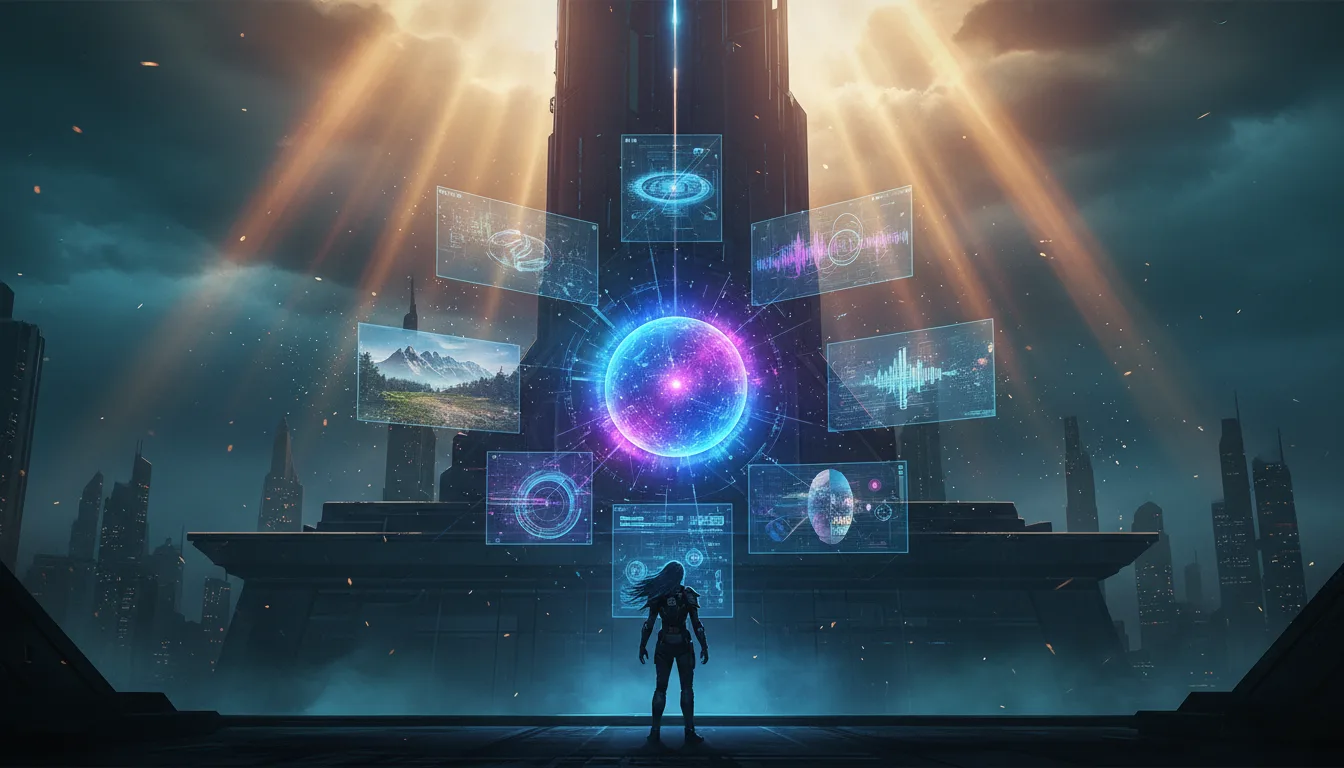
What Is Multimodal AI? The Era of Creating Images, Voice, and Video Beyond Text
Multimodal AI is artificial intelligence that can understand and generate multiple types of data at once, including text, images, voice, and video. Where AI once handled only "text → text," a single text prompt can now produce an image, generate a voiceover, and even create a video.
In this guide, B2B sales reps and office professionals get step-by-step practice with four multimodal AI tools they can put to work today.
Before You Start: Tools and Accounts You Need
Get these tools ready in advance so the exercises go smoothly.
Use case | Tool | Cost | Sign Up |
|---|---|---|---|
Image generation | ChatGPT (GPT-4o, DALL·E 3) | Free / Plus $20 | openai.com |
Voice generation | ElevenLabs | Free: 10,000 characters/month | elevenlabs.io |
Video generation | Runway Gen-3 | Free credits: 125 seconds | runwayml.com |
All-in-one multimodal | Google Gemini | Free | gemini.google.com |
How to Create an Account (All Tools)
Go to each site.
Click "Sign Up" or "Get Started" at the top right.
Sign up with a Google account or email.
Once you verify your email, you can start using it right away.
💡 Pro tip: Signing up with your work email makes it easier to manage the account when you share it with your team later. The free plans are enough to complete every exercise in this guide.
Exercise 1: Create Images for Proposals with AI (ChatGPT + DALL·E 3)
Work Scenario
A B2B sales rep needs a custom illustration for a proposal going to a client. Commissioning a designer takes 3 days; with AI, it takes 30 seconds.
Before / After Comparison
Item | Before (Traditional Approach) | After (Multimodal AI) |
|---|---|---|
Turnaround | 2–3 days after commissioning a designer | 30 seconds to 2 minutes |
Cost | KRW 50,000 (≈ US$37)–150,000 per image | $20/month (unlimited) |
Revisions | 2–3 rounds (extra cost) | Instant, unlimited revisions |
Customization | Risk of miscommunication | Precise instructions via prompts |
How to use it
Step 1: Go to ChatGPT
In your browser, go to
chat.openai.com.After you log in, the main chat screen appears.
Step 2: Check the model
The model name appears at the top center of the screen.
Make sure **"GPT-4o"** is selected. (Click to change it.)
Step 3: Enter an image-generation prompt
Copy the prompt below and paste it into the message box at the bottom.
Prompt example 1 — Proposal cover image:
"Create a cover image for a proposal introducing a B2B SaaS solution. Make it a clean business illustration in blue tones, showing several company buildings connected to a cloud server. Don't include any text, and make it 16:9."
Step 4: Review and revise the result
The image is generated in about 15–30 seconds.
If you don't like it, enter a specific revision request.
Examples: "Change the background to a deeper navy", "Replace the buildings with people collaborating"
Step 5: Download
Click the generated image.
Click the **download icon (↓)** at the top right.
It's saved as a PNG file.
Prompt example 2 — Data visualization infographic:
"Create an infographic comparing before and after adopting our company's solution. The left side says 'Before: manual work, 30% errors, 8 hours processing time' and the right side says 'After: automated, 2% errors, 30 minutes processing time.' Use arrows and icons in a clean business style."
💡 Practical tip: When generating images, explicitly say **"Don't include any text"** to prevent garbled lettering. It's much cleaner to add the text you need yourself in PowerPoint.
Hands-on Step 2 — Create presentation narration with AI (ElevenLabs)
Work Scenario
You want professional narration for a video proposal going to a remote client. Hiring a voice actor costs time and money, but with an AI voice you can finish in 5 minutes.
Before / After Comparison
Item | Before | After |
|---|---|---|
Hiring and recording a voice actor | 1–2 weeks, KRW 300,000 (≈ US$225)–1,000,000 | 5 minutes, free to $5/month |
Revisions | Re-recording required | Edit the text and changes apply instantly |
Multilingual | Separate voice actor for each language | Switch instantly across 29 languages |
How to use it
Step 1: Go to ElevenLabs
In your browser, go to
elevenlabs.io.After you log in, the dashboard appears.
Step 2: Open the text-to-speech menu
Click **"Text to Speech"** in the left sidebar.
Or click the "Speech" tab in the top menu.
Step 3: Choose a voice
Click the "Voice" dropdown at the top of the screen.
Recommended voices: for business use, "Daniel" (male, calm tone) or "Rachel" (female, professional tone) work well.
To find a voice that supports **Korean**, type "Korean" in the search box.
Step 4: Enter the narration text
Paste your narration script into the large text box in the center.
Prompt example 3 — Proposal narration script:
"Hello, this is ABC Solutions. The Smart Workflow System we're introducing today transforms your business processes. Adopting companies have cut average processing time by 67%, and in one case saved roughly KRW 200 million (≈ US$149,600) in labor costs per year. Over the next three minutes, we'll walk you through the key features."
Step 5: Fine-tune the settings
Stability slider: move it right for a steadier, more consistent tone; move it left for more emotional expression. For business use, we recommend **70–80%**.
Clarity + Similarity Enhancement: keep the default (75%).
Step 6: Generate and download
Click the "Generate" button at the bottom.
The audio is generated in 10–20 seconds.
Preview it with the play button (▶), and if you're happy with it, click the **download icon (↓)** to save it as an MP3.
💡 Pro tip: Adding commas (,) and periods (.) between sentences creates natural pacing. Putting "..." (an ellipsis) before a word you want to emphasize adds a brief pause. Example: "We saved about... KRW 200 million (≈ US$149,600) in labor costs per year."
Exercise 3 — Create a short promo video with AI (Runway Gen-3)
Work Scenario
You need a 5-second motion graphics clip to attach to a new product launch email. You don't need video editing skills — text alone is enough.
Before / After Comparison
Item | Before | After |
|---|---|---|
Outsourced video production | 1–4 weeks, KRW 1 (≈ US$1)–5 million | 2 minutes, using free credits |
Revision requests | 3–5 feedback loops | Edit the prompt and regenerate instantly |
Making a simple clip | Requires learning After Effects | Done with text input alone |
How to use it
Step 1: Go to Runway
In your browser, go to
runwayml.com.After you log in, the **"Dashboard"** appears.
Step 2: Create a new project
Click "Generate Videos" in the left menu, or **"Text/Image to Video"** on the main screen.
Make sure **"Gen-3 Alpha Turbo"** is selected (the latest model).
Step 3: Generate video from text
Enter a description of the video in the "Text Prompt" box.
Prompt example 4 — Product promo clip:
"A sleek modern office environment. A holographic dashboard floats above a desk, showing real-time analytics and graphs. Blue and white color scheme. Camera slowly zooms in. Professional, futuristic atmosphere. Cinematic lighting."
Note: Runway currently delivers its best results with English prompts.
Step 4: Adjust the settings
Duration: Choose 5 or 10 seconds. (We recommend 5 seconds to save your free credits.)
Resolution: Keep the default 720p.
Step 5: Generate
Click the "Generate" button.
Your video will be ready in about 1–3 minutes.
Check the preview, then click "Download" to save it as an MP4.
Step 6: Create a Video from an Image (Advanced)
You can also use the image you created in Exercise Step 1.
Click the "Image to Video" tab.
Drag and drop the image you made with DALL·E 3 to upload it.
Describe the motion you want in the prompt: "Slow camera pan to the right, subtle particle effects floating"
Click **"Generate"** and your still image becomes a video with natural motion.
💡 Pro tip: If writing English prompts is hard, first ask ChatGPT: *"Rewrite the following scene as an English prompt for Runway AI video generation: a modern office where data appears as holograms."* You'll get an optimized English prompt.
Exercise Step 4 — Multimodal Analysis with Google Gemini (Image → Text)
Work Scenario
You want to show AI a photo of a competitor's product brochure, a booth photo from a trade show, or a site photo from a customer, and get an instant analysis report.
Before / After Comparison
Item | Before | After |
|---|---|---|
Competitor brochure analysis | 2 hours of manual reading and summarizing | Upload 1 photo → 3 minutes |
Site photo report writing | 1 hour of typing while looking at photos | AI analyzes the photo and drafts the report in 5 minutes |
How to use it
Step 1: Open Gemini
Go to
gemini.google.comin your browser.Log in with your Google account.
Step 2: Upload an Image
Click the "+" icon or the **image icon (🖼️)** on the left of the chat input box.
Select the image you want to analyze. (A competitor brochure photo, a business card photo, a site photo, etc.)
Step 3: Enter an Analysis Prompt
With the image attached, type your text prompt.
Prompt Example 5 — Competitor Brochure Analysis:
"This image is a competitor's product brochure. Analyze it by the following items:
Key product names and main features
Estimated target customers
Pricing information (if any)
3 points where we can differentiate ourselves
Analysis of this brochure's marketing strategy
Organize it in a table."
Prompt Example 6 — Trade Show Photo Report:
"This photo shows a booth at the IT trade show I attended today. Based on it, write a business trip report for my manager. Analyze the products on display, the technology keywords, and the market trends, and draw out the implications for our business."
Step 4: Use the Results
Gemini analyzes the text, layout, and even the design elements in an image, then writes a report.
Copy the result and paste it straight into an email, a report, or a Slack message.
💡 Pro tip: Take a photo of a business card, upload it, and say *“Turn the information on this card into CSV format for CRM entry.”* You can digitize dozens of cards collected at a trade show in no time.
Exercise 5 — An Integrated Workflow Combining All Four Tools
The real power comes when you connect the tools you have learned so far into a single workflow.
Scenario: Building a Proposal Presentation for a New Client
Step | Task | Tool | Turnaround |
|---|---|---|---|
1 | Write and structure the proposal content | ChatGPT (text) | 15 min |
2 | Generate 5 custom images, one per slide | ChatGPT + DALL·E 3 | 10 min |
3 | Capture the client’s website → AI analysis → draft a tailored message | Gemini (image → text) | 5 min |
4 | Create 30-second motion clips for the key pages | Runway Gen-3 | 5 min |
5 | Generate voice narration for the entire presentation | ElevenLabs | 10 min |
Total | 45 min |
The traditional way?
Commissioning a designer for images: 3 days
Outsourcing the video clips: 1 week
Voice actor recording: 3 days
Total: 1–2 weeks and KRW 2 (≈ US$1)–5 million
Step-by-step walkthrough
Step 1: Sketch the proposal outline in ChatGPT.
“Outline a 10-page B2B SaaS proposal. The client is a mid-sized manufacturer, and our product is a production management automation solution.”
Step 2: Generate an image for each slide concept with DALL·E 3.
Page 1 cover, page 3 problem statement, page 5 solution overview, page 7 results case study, page 10 closing
Step 3: Capture the client’s website, upload it to Gemini, and analyze the client’s pain points.
Step 4: Turn the solution demo scene into a 5-second clip in Runway and insert it on page 5.
Step 5: Generate the full narration with ElevenLabs and insert it as per-slide audio in your PPT.
In PowerPoint, select each slide → Insert → Audio → Audio on My PC → choose the MP3 file
Cautions When Using Multimodal AI
⚠️ What You Must Check
Copyright: Copyright policies for AI-generated images vary by tool. Check each service’s terms of use before commercial use.
ChatGPT/DALL·E 3: Commercial use is allowed for paid-plan users
Runway: Commercial use is allowed on paid plans
ElevenLabs: Commercial use is allowed on paid plans
Accuracy check: A person must always review any text, numbers, and logos in AI-generated images.
Confidential information: Before uploading client confidential information or internal strategy documents to an external AI tool, always check your company security policy.
Disclosure: In some cases you must disclose that content was generated by AI. Check your company’s internal AI usage guidelines.
Wrap-Up — 3 Actions to Start Tomorrow
Here is the minimum set of actions to apply what you learned today to your work tomorrow.
Action 1: Today (5 minutes)
Open ChatGPT and create one proposal cover image.
Just copy Prompt Example 1 above and use it as is.
Action 2: This week (30 minutes)
Sign up for ElevenLabs and create one summary narration for a proposal you are currently working on.
Sixty seconds is plenty.
Action 3: This month (2 hours)
Apply the **integrated workflow (5 steps)** to a proposal for a real client meeting and complete a multimodal presentation.
Key Takeaways Checklist
I understand the concept of multimodal AI (text↔image↔voice↔video)
I can generate business images with ChatGPT
I can create narration audio with ElevenLabs
I can create short video clips with Runway
I can analyze images with Gemini and write reports from them
I can run an integrated workflow that combines all four tools
Multimodal AI is no longer just for technical experts. Anyone who can type text can now create images, voice, and video. Apply just one thing you practiced today to your work tomorrow. A small start can lead to a big change in how you work.