
Topaz
“Specialized in upscaling” — a restorer who brings blurry photos back to life
What is Topaz?
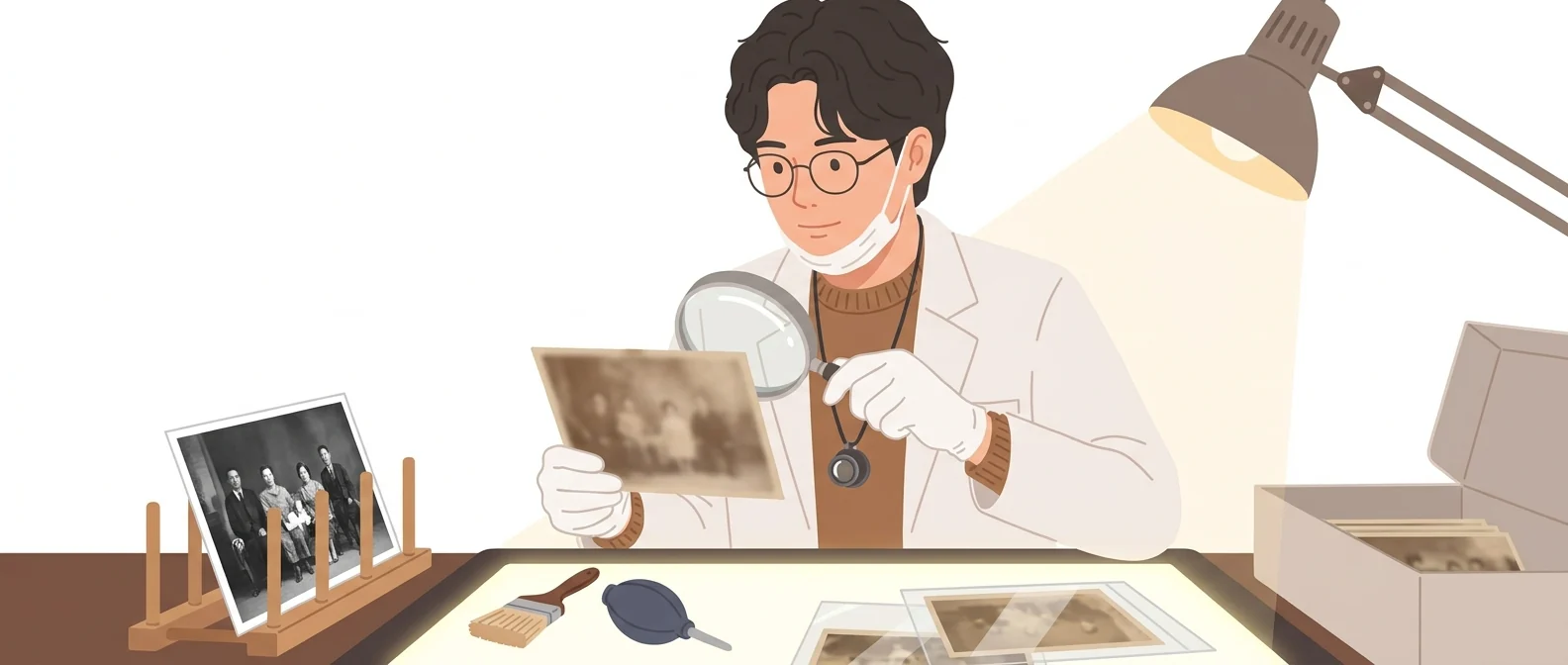
Topaz is desktop image-enhancement software from Topaz Labs in the US. It specializes in upscaling: enlarging small, blurry photos and videos while removing noise and camera shake.
- 1It doesn’t create anything new. It restores what you already have.
- 2Enlarges small logos and old photos so they can be used in print
- 3There is no free plan, and each app is purchased separately
What sets it apart
These are the differences we found by running the same material through several tools in our training sessions.
Small originals to print size
When a logo’s original was lost in a staff handover, or all that’s left of a 10-year-old event is a small, blurry file, it enlarges the material to a size you can actually use. Rather than simply stretching the image, it redraws edges and texture, so enlarged results don’t break up into jagged steps.
Photos and video under one roof
Photo enhancement, upscaling, and video quality improvement are split into separate programs, and bundles are available. Even enlarging old training videos to fit today’s screens can be done within the same company’s tools, so you can reuse materials without reshooting.
Runs on your own computer
Because it is installed software, you can process files without uploading them anywhere. The official pricing page separates processing on your own device, with no usage limit, from cloud processing, which uses credits, so you can choose to keep sensitive photos on your own machine.
⚖️ The weaknesses are clear, too
There is no free plan, and photo, video, and upscaling are sold separately, so you have to move up to a bundle to use them all. It can’t create what isn’t there, so badly damaged originals hit a clear limit, and faces can come out over-smoothed and look unnatural.
💡 In plain EnglishThink restorer, not painter: it works on old photos one at a time, and it needs something left to bring back.
Most company materials get stuck at “we don't have the original.” An old photo for a promo piece or a tiny logo from a partner can stall the whole job, and just knowing a tool exists to clear that bottleneck gives you more options.
Same job, different approach
The old event photos for our 20th-anniversary book are too small
The old way
- You dig through folders for a larger original, but can’t find one
- Enlarged as-is, it turns to mush in print
- Shrink the photo to force it into the layout
- In the end, you decide to use only one photo from that year
With Topaz
- Load a small original into the program and choose an upscaling factor
- Adjust the noise and blur levels and compare the results in the preview
- Export at print size and hand it to the editor
- Use several photos from that year, as planned
Common uses
Get print-ready resolution
Enlarge small, screen-only images to banner and brochure size. Meeting the resolution your print vendor requires is mostly solved right here.
Reviving old training videos
Scale up training videos shot years ago to fit today’s screen sizes and remove the noise, then re-edit and reuse them without reshooting.
Polishing AI-generated drafts
Drafts generated by image AI can look fine on screen but fall short for print. Use the final step to raise the size and sharpness.
Who it’s for
Best for
- ✓PR and general affairs staff who need to use old photos or small logos in print
- ✓Training managers who want to re-edit and reuse past training videos
- ✓Anyone who needs to turn AI-generated images into real printed materials
Better served by other tools
- –Anyone who needs to create an image from scratch
- –Anyone who wants a light fix with a free tool
- –Anyone on a low-spec machine who wants to work in the browser without installing software
Can we use it at work?
The questions that adoption leads and security teams ask first.
Note: Commercial-use terms differ by plan. Before adopting it for work, check the official terms to see which plan first allows full commercial use.
10-minute quick start
- 1
Choose the app you need on the official site. If you only need resolution upscaling, the lowest-tier product is enough.
- 2
After installing, load one small image and try two or three different upscaling factors.
- 3
Compare the preview side by side to find the point where the image stops looking over-smoothed.
- 4
Save those settings, then process multiple images at once with the same settings from then on.
Copy-and-paste prompts
Replace only the [bracketed] parts, then paste it in.
Enlarge [file name] to [target pixels] wide, and keep the enhancement strength low so faces don’t get over-smoothed. Export the result for print.
Load the whole batch of [year] event photos at once, set noise reduction to medium and sharpening to low. For photos with faces, check each result by eye, one photo at a time.
Enlarge [lecture video file] to fit today’s screen sizes, and first test on the opening 30 seconds to check for ghosting in high-motion segments.
Enlarge the [logo file] you received from a partner company to a size that works for a banner. Scale it up only as far as the lettering edges stay clean; beyond that, it’s better to redraw it.
Enlarge the [draft file] from the image AI to print resolution, keeping enhancement to a minimum so the original texture isn’t lost.
Using it with other tools
Linking two or three tools changes your work more than any single tool does.
AI drafts to print-ready files (40 min)
Repurpose old training videos (half a day)
Before you start
- If the original is badly damaged, there are limits. It is not a tool that creates information that was never there.
- Portraits can end up overly smooth and look unnatural. Lower the enhancement strength and check the result by eye.
- Video processing takes a long time. Test a short clip first, then run the full file.
- Each plan shows a different scope of commercial use. For business use, check which tier you need first.
Pricing: personal use and work use
Plans that individuals pay for are different from plans that organizations contract for by member.
For individual use
Upscaling only. The lowest-priced plan
Photo enhancement and upscaling together
Video quality enhancement only
All-app bundle. Unlimited processing on your own machine, 300 cloud video credits per month, commercial use restrictions
Web-based, images only, no install
Using it at work
Pro license for all apps, full commercial use, seat management, 600 video cloud credits per month
Checked on 21 Sep 2026 · Amounts in US dollars as shown on the official Topaz Labs pricing page. Monthly prices differ depending on whether you commit annually, and taxes and currency may vary by the country you access from. Prices change without notice — check the official page before you pay. Topaz Labs official pricing ↗
Where Topaz falls short
We don’t just list the positives. Here is what fell short when we used it.
- Hard to try before you buy
There is no free tier, so you have to decide whether to pay before you can check that it works on your own material. The trial terms are also unclear on screen, so adoption decisions tend to get delayed.
- You use it occasionally but pay every year
You need it in a burst once or twice a year, but the subscription fee never stops. You end up wanting to switch it on only when needed, and you put off paying.
- No Korean help documentation
Both the interface and the help documents are in English, so you learn by trial and error which settings to use and how far to push them. There is not much jargon, but first-time users will need a separate walkthrough.
Tools to compare




FAQ
Last updated 22 Sep 2026 · The ratings on this page come from John Kim, CEO of Nanum Consulting, who has used these tools firsthand in training and real work.
Making Topaz part of your team’s skill set
Send us a message and we’ll reply within 24 hours. We’ll propose a curriculum tailored to your industry and job roles.
Courses that teach this toolAI Tools Training (by Use Case)