
Canva
“Video and image editing (rich elements)” — a one-stop design shop
What is Canva?
Canva is an online design tool from the Australian company of the same name. It combines a vast library of templates, photos, shapes, and fonts with AI generation and editing features, so you can make everything from presentations to social media carousels and short videos on one screen.
- 1A huge library of templates and elements
- 2Move between images, documents, and video in one tool
- 3AI features run within the usage limits of your plan
What sets it apart
These are the differences we found by running the same material through several tools in our training sessions.
Plenty of material to work from
Templates, photos, shapes, fonts, and charts are all available on one screen. No more time spent wondering what to put where on a blank page. Making becomes more like choosing, and that is the biggest reason to use Canva.
Images and video in one tool
Go straight from your social cards to a short video without leaving the editor. Just change the aspect ratio to export separate versions for Instagram, YouTube, or print. Not having to switch tools for each channel saves real working time.
Lock in your team’s colors and fonts
On paid plans, once you register your brand colors, fonts, and logo, materials your team creates automatically keep the same look. Keeping your materials consistent even when the person in charge changes is worth more to an organization than it seems.
⚖️ The weaknesses are clear, too
Its video editing doesn’t go as deep as dedicated tools. Don’t expect precise audio work or color grading. Also, AI features on every plan draw from a shared usage limit, so heavy use can hit the cap before the month ends and you’ll need to buy add-ons.
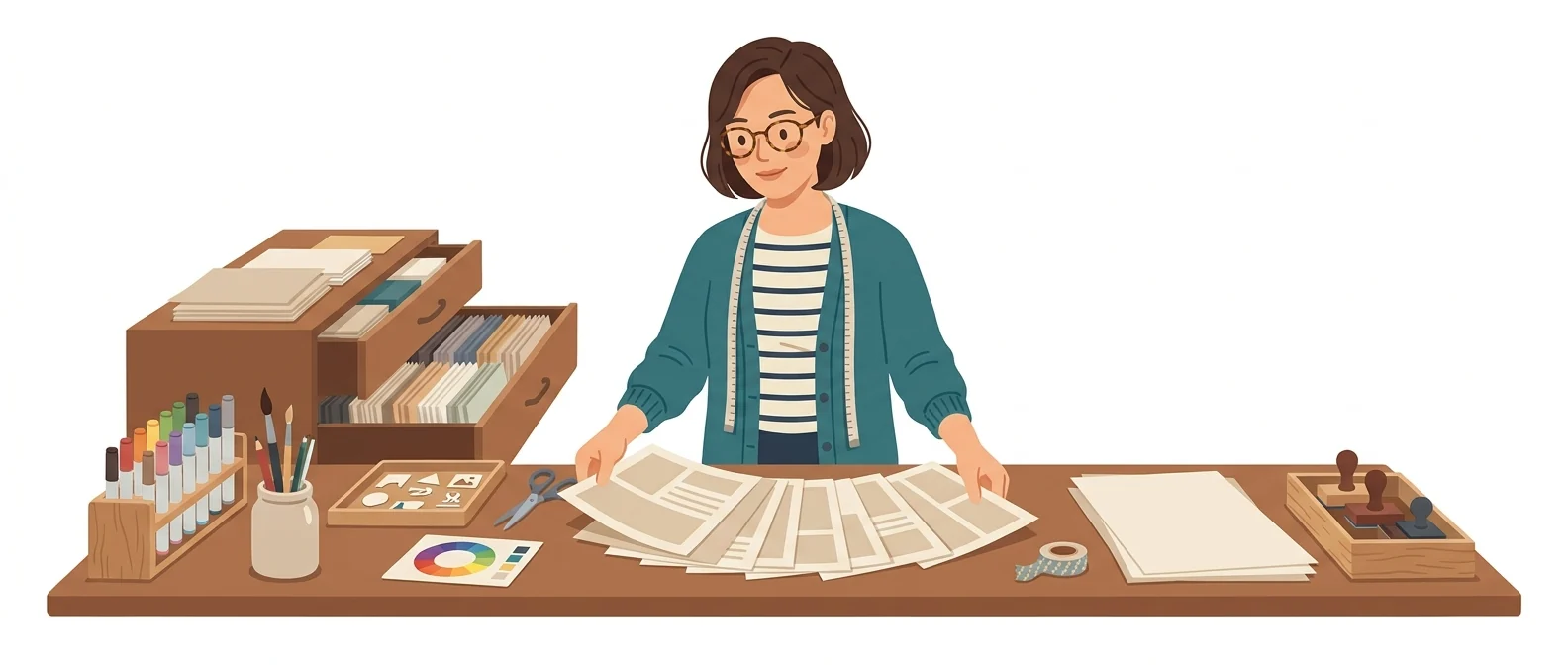
💡 In plain EnglishThink of a huge stationery store stocked with materials, with workbenches set up inside. The biggest difference is that you never have to start from a blank screen.
The quality gap in internal materials comes down less to talent than to whether you have usable materials at hand. Canva puts templates and brand elements in one place, so your whole team can produce work of a similar standard without a designer.
Same job, different approach
You need a training announcement, social media cards, and a short promo video, all by tomorrow morning
The old way
- Write the notice in Word and make the cards separately in an image editor
- Fonts and colors look different from one document to the next
- Video ends up outsourced or abandoned
- Rebuild each one to fit every channel’s aspect ratio
With Canva
- Pick one template and finish the announcement first
- Duplicate the same design and resize it to social card ratios
- Build a 15-second video version from the same elements
- Brand colors and fonts are applied, so all three look like one set
Common uses
Create a matching set of training and event announcements
Create notices, social media cards, and banner drafts from the same template. Just change the aspect ratio on export and every channel’s specs are covered at once.
Report charts and infographics
Paste in numbers as a table and add a chart to build a one-page summary graphic. In executive reports, a visual lands faster than words.
Standardizing internal training materials
Create and share a team template with your brand colors and fonts built in. Every department works from the same document format instead of its own.
Who it’s for
Best for
- ✓Professionals who need to create materials themselves, without a designer
- ✓Anyone who needs social posts, banners, and presentations to match as one set
- ✓Anyone who wants consistent fonts and colors across team materials
Better served by other tools
- –Anyone who needs precise video editing and color grading
- –Anyone whose main job is subtitle extraction and translation
- –Anyone who needs advanced print editing and color separation
Can we use it at work?
The questions that adoption leads and security teams ask first.
Note: The exact extent to which your inputs are used to improve models, and how this differs by plan, should be rechecked against the original Canva AI terms and privacy policy.
10-minute quick start
- 1
Sign up with a Google account and start for free. There is nothing to install.
- 2
Type what you want to make in the search bar, in Korean. For example, type 'training announcement poster' and templates appear.
- 3
Pick a template you like and just swap the text and photos. Don’t rebuild the layout from scratch.
- 4
Duplicate a finished design, change only the aspect ratio to make a version for each channel, and share it by putting it in a team folder.
Copy-and-paste prompts
Replace only the [bracketed] parts, then paste it in.
Create an in-house training announcement poster for [training name]. Vertical A4, mainly calm navy and white, with the title at the top, the date and venue in the middle, and how to register at the bottom.
Shorten the text below so it fits on a poster. Title within 12 characters, subtitle within 25 characters, and the body in three lines. Write in a polite, formal tone.

[Paste the announcement text]
Create a simple background image that captures the feel of a [industry] office. Don’t include any faces, and leave a wide blank area on the left for text.
Keep only the [subject to keep] in this photo and remove the background. Then replace the background with a solid light gray.
Turn this design into a 15-second vertical video. Split it into scenes: the title on the first screen, one key phrase on each of the next three screens, and sign-up instructions at the end.
Using it with other tools
Linking two or three tools changes your work more than any single tool does.
Turn a one-page report into a presentation
Social cards and short-form video as a set
Before you start
- AI features draw from a shared usage limit that depends on your plan. Once you hit the limit, you are blocked until the month rolls over, so check your remaining balance before urgent work.
- If you add a premium element on the free plan, payment is required when you download. Check whether each element is free before you start.
- If you don’t check share-link permissions, files can leak outside the company. Narrow the view and edit permissions before you distribute.
- AI-generated images can look similar to what other people produce. Don’t use them where uniqueness matters, such as a logo or a signature image.
Pricing: personal use and work use
Plans that individuals pay for are different from plans that organizations contract for by member.
For individual use
Basic templates and editing features
Premium templates and content, plus higher AI usage
Using it at work
Stronger brand management, team collaboration, and a higher tier of AI access
Organization-wide rollout. The official page does not list a price
A monthly add-on for Pro and Business that greatly increases AI usage
Checked 2026-09-21 · Prices are the KRW amounts shown on Canva’s official Korean pricing page. Taxes and currency may vary by the country you access from. Prices can change without notice — check the official page before you pay. Canva Korea official pricing ↗ · Canva AI FAQ ↗
Where Canva falls short
We don’t just list the positives. Here is what fell short when we used it.
- Korean text can throw off line breaks
Many templates are built for English, so Korean text can overflow or leave awkward line spacing. You end up resizing text boxes and fixing line breaks by hand.
- It slows down with many slides
Because it runs in the browser, the screen gets sluggish as slides pile up or you add lots of photos. There will be moments of frustration when you rush to make last-minute edits just before a presentation.
- Layouts can break when moved to PowerPoint
If you download the file and open it in PowerPoint, fonts and layout can differ from the original. If the material must be submitted in an in-house template, you’ll need extra time to check it.
Tools to compare



FAQ
Last updated 22 Sep 2026 · The ratings on this page come from John Kim, CEO of Nanum Consulting, who has used these tools firsthand in training and real work.
Canva, powered by your team’s own skills
Send us a message and we’ll reply within 24 hours. We’ll propose a curriculum tailored to your industry and job roles.
Courses covering this toolChatGPT and AI Tools Training · IT Smart Working