The Google Sheets course is a 7-hour intensive program designed by John Kim, CEO of Nanum Consulting. It builds practical spreadsheet skills that boost work efficiency. Its 14 step-by-step modules take you from the basics to advanced features, and you learn the core skills for data analysis and work automation through hands-on practice. You will raise your personal productivity and learn to get the most out of Google Sheets as a team collaboration tool, a skill that is essential in the modern digital workplace. The curriculum draws on Nanum Consulting’s experience training at 50+ major corporations and institutions.
Who is this course for?
This course suits practitioners and leaders at companies and institutions that need IT & Digital skills. It is especially recommended for organizations aiming to “build proficiency with Google Sheets.”
What will you learn?
- Build Google Sheets proficiency
Curriculum
- ᆞWhat is Google Sheets?
- ᆞSigning in with a Google account
- ᆞAccessing Google Drive and creating folders
- ᆞBasic file operations
- ᆞCreating a spreadsheet and naming sub-sheets
- ᆞEntering data in cells
- • Trying out keyboard shortcuts
- ᆞUnderstanding relative and absolute references
- ᆞMerging and splitting cells
- ᆞAdjusting table appearance and cell formatting
- ᆞUsing data search and sort features
- ᆞBuilding a database
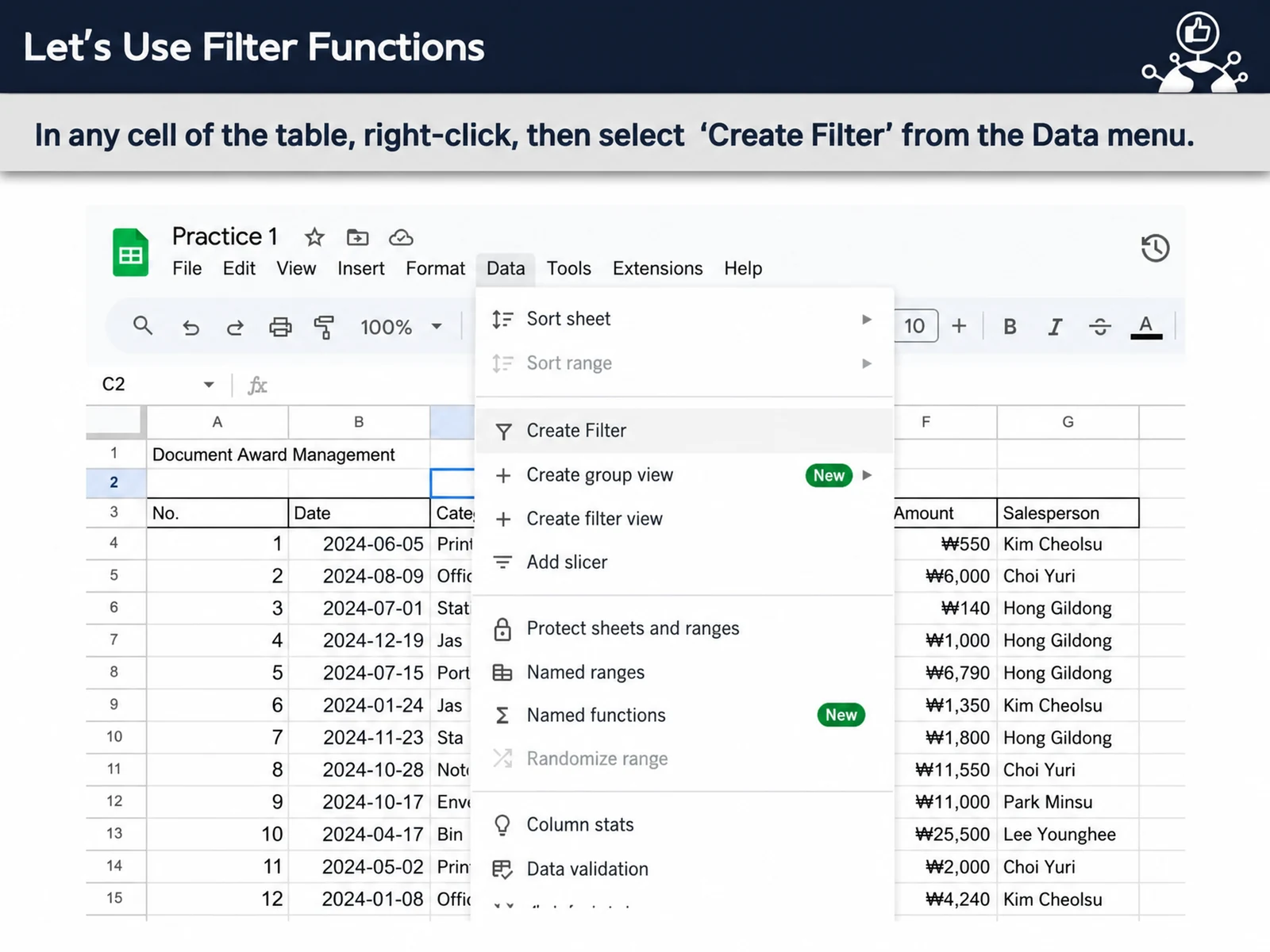
- • Analyzing data with filters
- • Using the Explore feature
- ᆞUsing the SUM and average functions
- ᆞThe IF function: changing results by condition
- ᆞThe VLOOKUP function for extracting data
- • Chart basics
- ᆞVarious chart styles
- ᆞPublishing charts to the web
- ᆞCreating pivot tables and basic use
- ᆞAdvanced pivot table applications
- ᆞRestoring pivot table edit history
- • Data protection settings
- ᆞCollaborating with co-editors (using comments and notes)
- ᆞSharing data and downloading for offline use
- ᆞChanging text and number formats
- ᆞAdjusting fonts and cell height and width
- ᆞCreating easy-to-read tables
- ᆞINDEX and MATCH functions
- ᆞThe QUERY function for searching data that meets multiple conditions
- • Using date and time functions
- ᆞManaging data quality with input validation rules
- ᆞAutomating tasks with simple scripts
- ᆞAutomation and spreadsheet integration examples
- • Highlighting data with conditional formatting
- • Analyzing data from different angles with filter views
- ᆞVisualizing summary data
- ᆞReal-time co-editing and version history
- ᆞUsing real-time edit notifications
- ᆞTips for improving collaboration efficiency
- • Real-world workplace use cases
- ᆞProject management and data tracking
- ᆞTips and tricks for advanced users
Expected results / After the course
- Learn real-world Google Sheets use cases and apply them on the job
On-site training references
About the instructor

Related courses
We tailor this course to your company
From diagnosis to execution — Nanum Consulting
FAQ

How to Use Google Sheets
The Google Sheets course is a 7-hour intensive program designed personally by John Kim, CEO of Nanum Consulting, to build practical spreadsheet skills that maximize work efficiency
- Build Google Sheets proficiency
- Learn real-world Google Sheets use cases and apply them on the job
- ᆞWhat is Google Sheets?
- ᆞSigning in with a Google account
- ᆞAccessing Google Drive and creating folders
- ᆞBasic file operations
- ᆞCreating a spreadsheet and naming sub-sheets
- ᆞEntering data in cells
- • Trying out keyboard shortcuts
- ᆞUnderstanding relative and absolute references
- ᆞMerging and splitting cells
- ᆞAdjusting table appearance and cell formatting
- ᆞUsing data search and sort features
- ᆞBuilding a database
- • Analyzing data with filters
- • Using the Explore feature
- ᆞUsing the SUM and average functions
- ᆞThe IF function: changing results by condition
- ᆞThe VLOOKUP function for extracting data
- • Chart basics
- ᆞVarious chart styles
- ᆞPublishing charts to the web
- ᆞCreating pivot tables and basic use
- ᆞAdvanced pivot table applications
- ᆞRestoring pivot table edit history
- • Data protection settings
- ᆞCollaborating with co-editors (using comments and notes)
- ᆞSharing data and downloading for offline use
- ᆞChanging text and number formats
- ᆞAdjusting fonts and cell height and width
- ᆞCreating easy-to-read tables
- ᆞINDEX and MATCH functions
- ᆞThe QUERY function for searching data that meets multiple conditions
- • Using date and time functions
- ᆞManaging data quality with input validation rules
- ᆞAutomating tasks with simple scripts
- ᆞAutomation and spreadsheet integration examples
- • Highlighting data with conditional formatting
- • Analyzing data from different angles with filter views
- ᆞVisualizing summary data
- ᆞReal-time co-editing and version history
- ᆞUsing real-time edit notifications
- ᆞTips for improving collaboration efficiency
- • Real-world workplace use cases
- ᆞProject management and data tracking
- ᆞTips and tricks for advanced users