
Bing Creator
“Free, but lowest quality” — the corner photo-print shop that’s always packed because it’s free
What is Bing Creator?
Bing Creator is Microsoft’s free AI image generator at bing.com/create. There is no payment or installation: just type a prompt and get an image, though the quality falls short of today’s paid tools.
- 1No payment needed: type a sentence and get an image right away
- 2Guests get a few images per day; logging in lets you create more
- 3Polish still lags well behind today’s paid tools
What sets it apart
These are the differences we found by running the same material through several tools in our training sessions.
No cost, no installation
Open the address and the input box appears right away. Microsoft’s official guidance also states that it is "free to use, though you may need a subscription to create more often." It is one of the few tools where everyone in the training room can start at the same time.
You can choose the engine
The model list on screen includes DALL·E models, GPT-4o image, and Microsoft’s own MAI-Image models, plus video models. It is well suited to a comparison exercise: enter the same prompt and switch only the engine.
Fits into the Windows workflow
It opens with a single Microsoft account, and the same image generation feature is also built into Designer and the default Windows apps. For people who can’t easily sign up for new services on a company PC, this accessibility is the biggest advantage. You just use the account you already have.
⚖️ The weaknesses are clear, too
The default engine still runs a model that is several years old, and aspect ratios are limited to roughly square and 3:2. Korean text almost always comes out garbled, and there is no way to refine details, such as editing part of an image. Generation slows down once you exceed the free limit. For external materials, you’re better off moving to another tool.
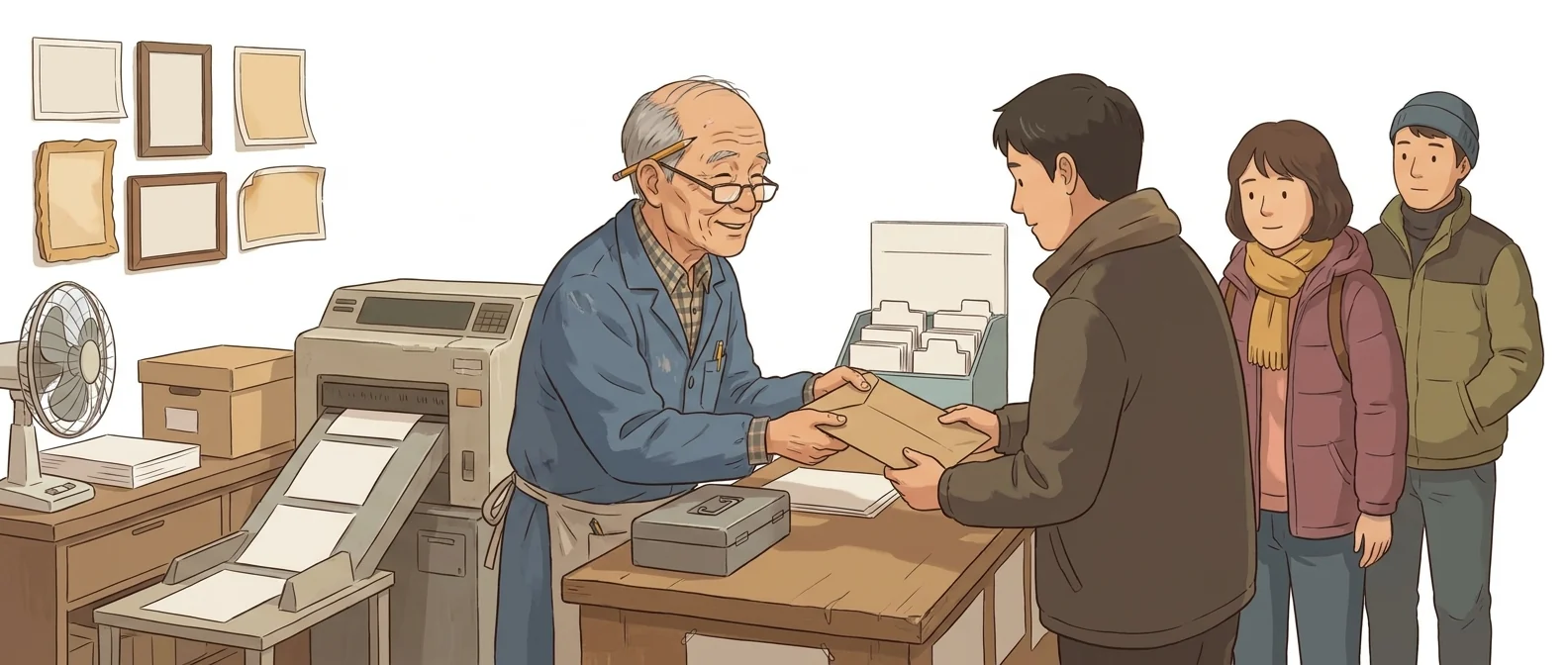
💡 In plain EnglishThink of a neighborhood self-service print kiosk rather than a fully equipped studio: it turns out a photo at the press of a button. It costs nothing, but there is little to choose from.
In the first session of an AI training, you need a tool that everyone can use at once without paying. Even if the results disappoint, it lowers the barrier, and that disappointment gives people a reason to learn the next tool.
Same job, different approach
You have 30 minutes in tomorrow’s internal training to cover “making images with AI”
The old way
- A paid tool means payment hurdles for participants before you even start
- IT replies that new software can’t be installed on company PCs
- Switch to a demo on the instructor’s screen only
- Participants only watch and leave empty-handed
With Bing Creator
- Share one address and have everyone open their own browser
- Enter the same prompt and compare the results
- Switch the engine and enter the same prompt again
- Move on to "which tool to use when you need better results"
Common uses
First practice in the training room
Use it for hands-on exercises where everyone enters the same prompt, with no payment or installation. Comparing the different results brings the session to life.
Temporary image for internal use
Create quick visuals for meeting materials or internal posts. Once the work goes external, switch to a different tool.
Idea sketch
See quickly how a scene you have in mind looks as an image. Settle on a direction here, then build the final version in another tool.
Who it’s for
Best for
- ✓Anyone trying AI images for the first time without paying
- ✓Work PCs where you can’t install new software
- ✓Training managers who need everyone to practice at the same time in the training room
Better served by other tools
- –Anyone producing external materials that go to clients
- –People who need Korean text inside the image
- –Anyone who wants to refine an image in fine detail
Can we use it at work?
The questions that adoption leads and security teams ask first.
Note: For the terms of commercial use of generated images and how input data is handled, check the original Microsoft Services Agreement.
10-minute quick start
- 1
Open bing.com/create. You can generate a set number of images per day even without logging in.
- 2
Log in with a Microsoft account to generate more and unlock advanced model options.
- 3
Describe the scene you want in a single sentence. Include the aspect ratio and mood as well.
- 4
If you’re not happy with the result, try the same prompt in a different model and compare.
Copy-and-paste prompts
Replace only the [bracketed] parts, then paste it in.
An employee in an office wearing a hard hat and checking an inspection checklist. Bright, tidy mood, mostly blue and gray, a square image for use as an internal announcement illustration.
A simple abstract background symbolizing [topic]. No people or text, calm look using only two colors. Landscape ratio for use as a slide background.
A top-down view of an open notebook and a coffee cup on a desk. The same scene in three moods: photo-realistic, watercolor, and simple line drawing.
People seated in a classroom listening to a presentation. Simple faces, flat bright-color illustration, a landscape image for an event announcement.
Draw [imagined scene] like a pencil sketch. Lines only, no color, so I can check just the composition.
Using it with other tools
Linking two or three tools changes your work more than any single tool does.
From a taste of hands-on practice to the real thing (1-hour training)
Meeting deck in a hurry (20 min)
Before you start
- Used as-is in external materials, the quality gap shows. Move anything going to clients to a different tool.
- Korean text inside images almost always comes out garbled. Add text later in an editing tool.
- Generation slows down once you pass the free limit, so make urgent images ahead of time.
- Don’t use a personal account for company materials.
Pricing
For individual use
Works without logging in, up to a daily limit that resets every day. Log in to create more.
Single user. Includes Copilot features in Office apps
Up to 6 people (AI features for the subscription owner)
The official comparison table lists broad access to AI image generation
Checked 21 Sep 2026 · Image generation itself is free. In case you want to create more often, we also list subscription prices (in KRW, VAT included) from Microsoft Korea’s official page. Prices change without notice, so check the official page before you pay. Bing Image Creator official page ↗ · Microsoft Designer official FAQ ↗ · Microsoft 365 pricing comparison (Korea) ↗
Where Bing Creator falls short
We don’t just list the positives. Here is what fell short when we used it.
- You need to generate several and pick the best
It rarely captures everything you ask for in one go, so you end up running the same prompt several times and picking the best result. Plans to finish with a single image usually fall through.
- Some prompts get blocked
Safety filters sometimes refuse a request without saying which word triggered them. Rewording and retrying can eat up a lot of time.
- Commercial use terms are unclear
The screen doesn’t tell you whether you can use the images in company materials. You have to find and read the terms separately, which adds one more check when you’re in a hurry.
Tools to compare



FAQ
Last updated 22 Sep 2026 · The ratings on this page come from John Kim, CEO of Nanum Consulting, who has used these tools firsthand in training and real work.
Building Bing Creator skills across your organization
Send us a message and we’ll reply within 24 hours. We’ll propose a curriculum tailored to your industry and job roles.
Courses covering this fieldAI Tool Training (by Use Case)